Choosing the main wallpaper for a smartphone is very important to people who always like to personalize and edit the system’s interface. Although searching for a suitable wallpaper is not difficult unlike before, the development and diversity of the screen technologies have enabled the availability of wallpapers designed to fit certain screens and dimensions more than others. Thus, using a good wallpaper app would be the best choice if you were looking for the best wallpapers that may be suitable for your phone screen.
In fact, there’s no app for wallpapers includes everything, because the copyrights on the photos impose the problem of distributing wallpapers among apps, in order not to let an app upload certain wallpapers without the owner’s permission. Thus, it’s better to use more than one app for wallpapers to be always able to get new wallpapers. In this article, we will offer you the best available apps for Android.
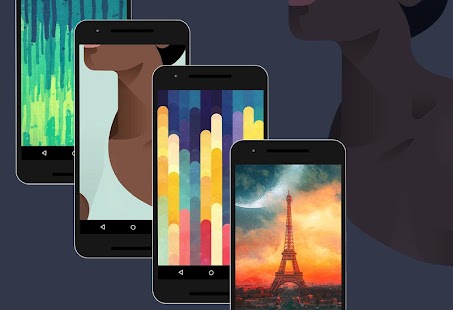
Walli is one of the few available apps that support Android phones & IOS together which gives it superiority over the other apps for wallpapers, as you might lose your photos if you transferred to another system. The app includes many high-resolution wallpapers and different measurements that fit most of modern and old smartphones wallpapers. You can easily browse the wallpaper according to the categories, common wallpapers or wallpapers added lately.
The app is a shelter for many designers and photographers who publish their works on the app where you can follow their accounts to watch their own wallpapers immediately after they upload them. Lately, the Android version of the app has got a feature to change the phone wallpaper spontaneously by choosing a certain collection of photos and determining the time between each wallpaper, and it’s unknown if this feature will be available for I-phones, as IOS system is known by not accepting any new features available by third-party apps.
This app offers the option to download wallpapers on the phone, but it reminds you that those wallpapers have copyrights which prevent you from using them as a business without the owner’s permission. The free version of the app includes many ads that show up at every new wallpaper downloading processes, but you can get rid of them by buying the premium version, which offers some exclusive wallpapers as well.
in today’s tutorial am going to teach you how to receive your phone SMS on your pc, I know you are wondering if this is possible the answer is yes, you can receive your mobile SMS on your computer and read it without touching your mobile phone this trick is very helpful for people whom their boss has restricted them from using phone at work, in addition, you can all so use this method to receive SMS on your computer when android your phone is at charge, charging your phone and using it is not a good thing because you can easily spoil the battery of your smartphone, so with this below method you will be able to receive all your SMS on your computer without any problem
How To Send And Receive All Your Android SMS On PC
The method is simple and straight and just require the android app that will transfer your SMS to PC and an extension of a browser that will allow you to get notify and read the message you received. So follow the methods below to implement this whole setup.
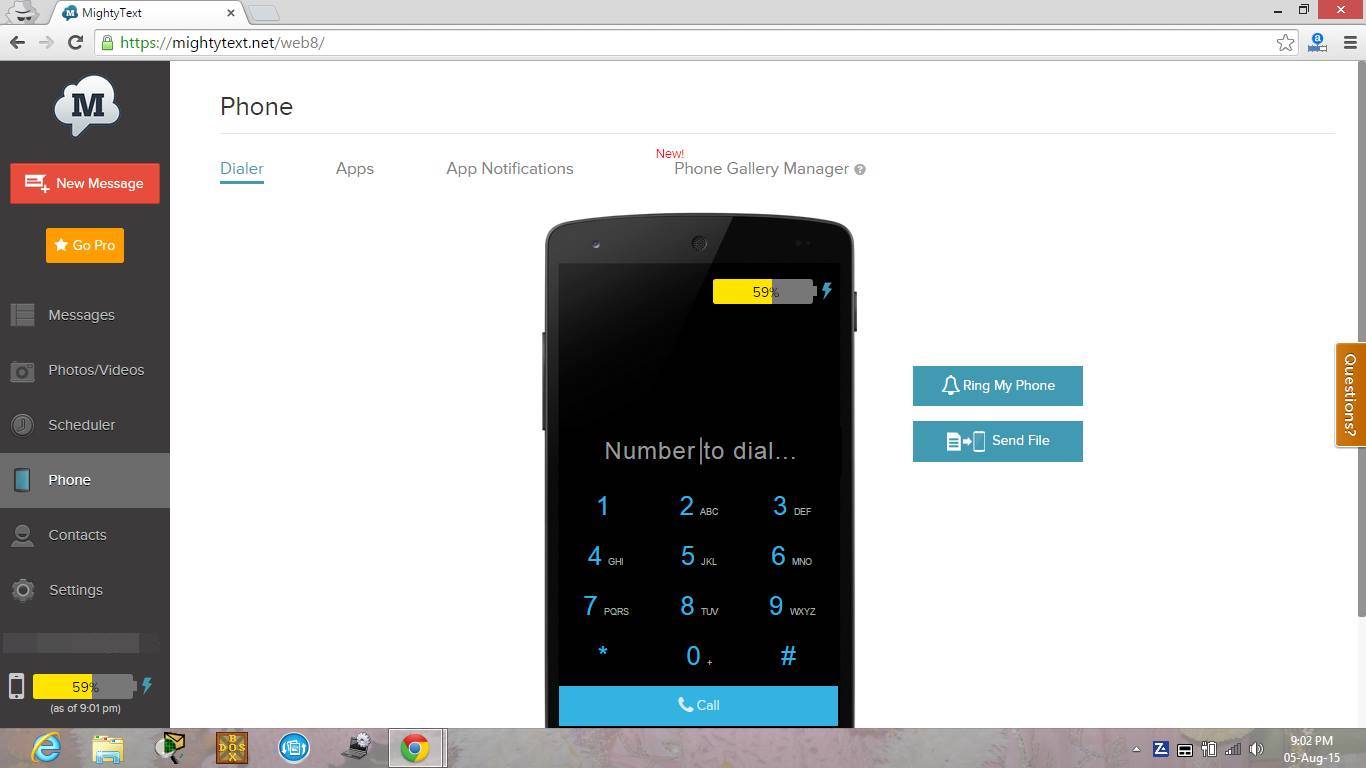
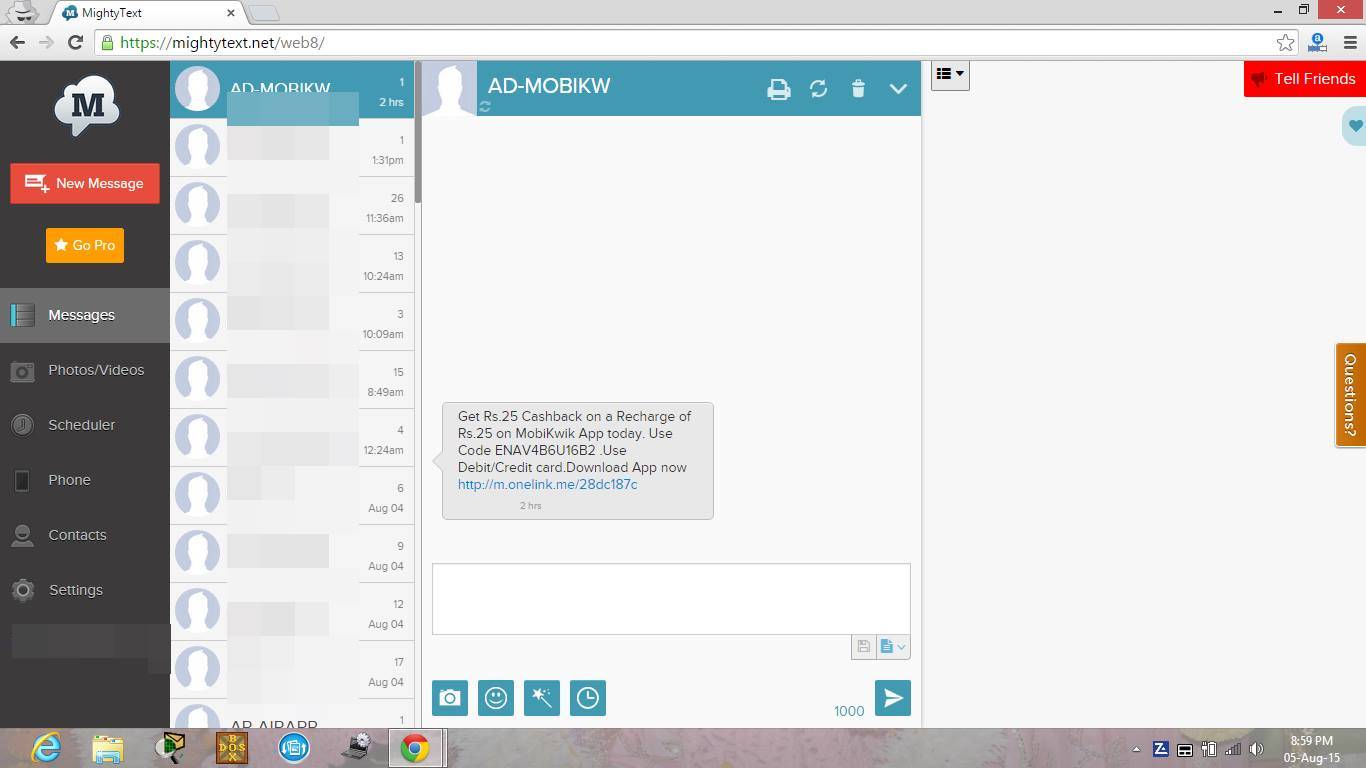
Method 1: Using Mighty Text
Step 1. First of all download and install app Mighty Text on your android device.
Step 2. Now in your Google Chrome browser add the extension Mighty Text.
C
Step 3. Now open the app you will need an initial pair up with your PC as it will be done over wifi network on which both the devices being connected.
Step 4. Now when you setup is done now you will see your android name on the icon when you click on it.
That’s it! all done, now when your android receives any SMS it will transfer on your extension of PC and you can read it there.
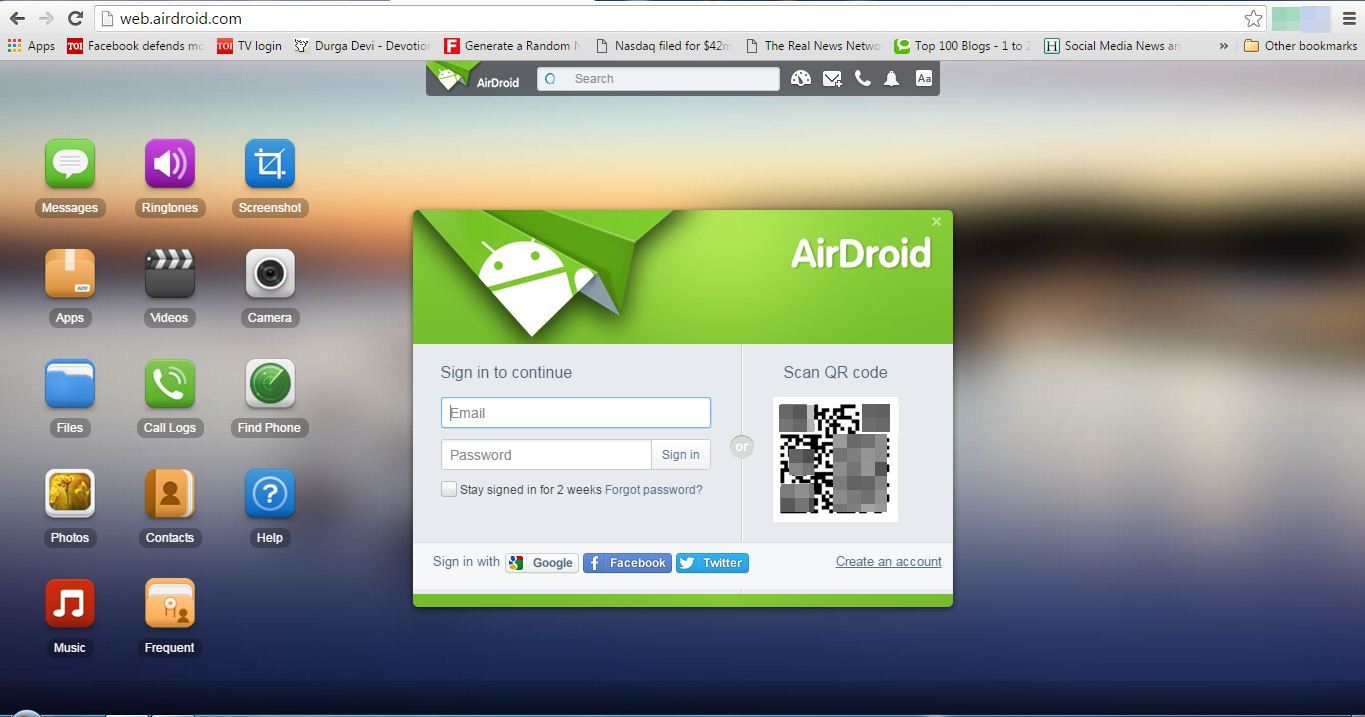
Method 2. Using Airdroid On Your Computer Browser
.
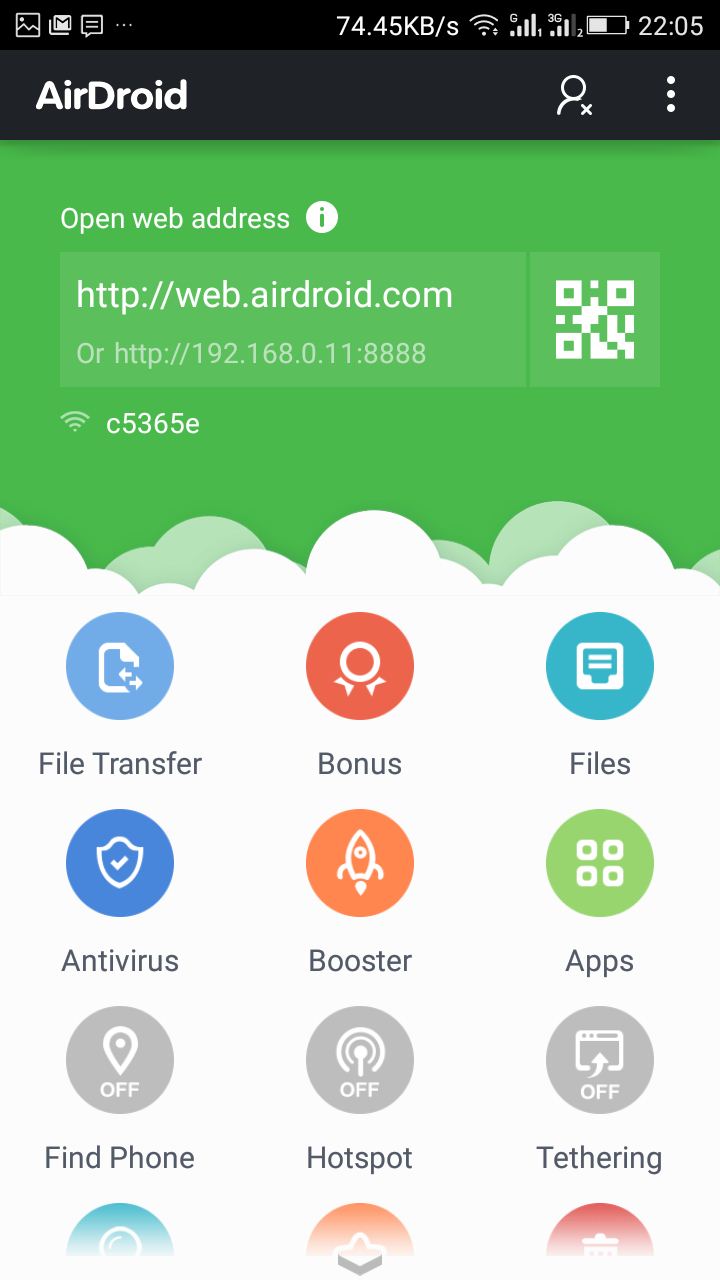
Step 1. You need to download Airdroid on your Android Smartphone first.
Step 2. After you downloaded the app on your Smartphone. Now go to web.airdroid.com from your Computer browser.
Step 3. Now scan the QR Code Given in your Computer screen with the help of your Android Mobile app.
All done. You can now explore your smartphone on your computer browser. You can send and receive SMS easily.
Method 3: Using ApowerMirror
Well, ApowerMirror is another great tool that you can use to send and receive all your Android SMS on PC. The great thing about ApowerMirror is that it allows users to mirror the entire Android screen on the computer. So, after mirroring, you can control the screen right from your computer. Here’s how you can use ApowerMirror to control send and receive Android SMS on PC.
Step 1. Download and install ApowerMirror on your Android smartphone. You can get the download file from the Google Play Store.
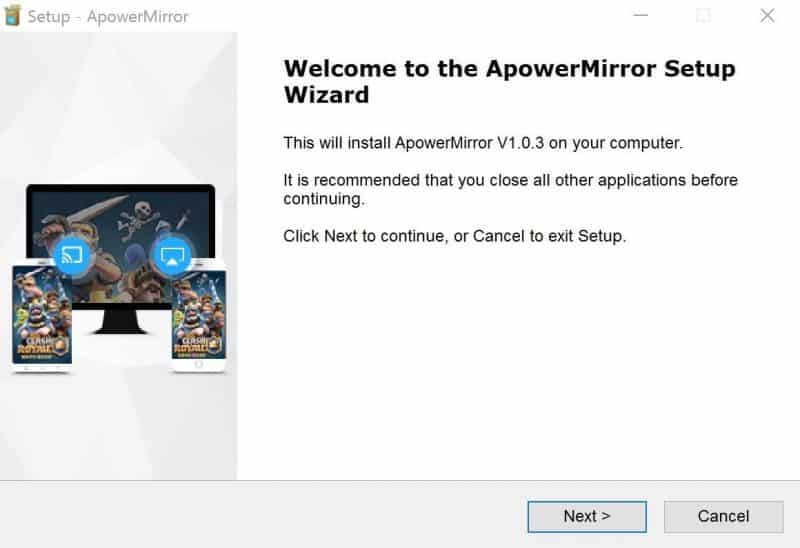
Step 2. Next, open ApowerMirror website on your computer and download the ApowerMirror client. Install the ApowerMirror client on your computer and just follow the on-screen instruction.
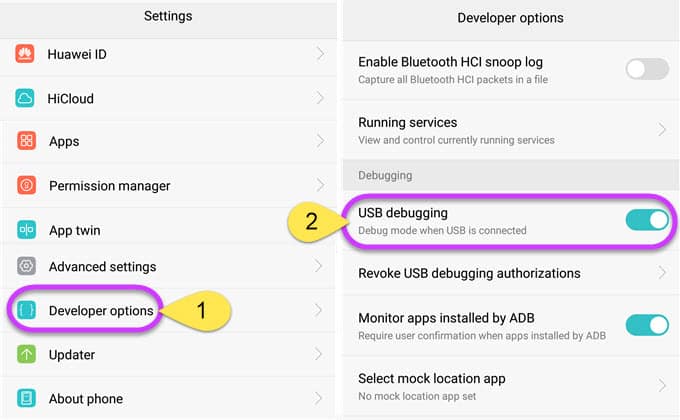
Step 3. Now you need to enable the USB Debugging Mode on your Android. For that, head to the Developer Options and there find and enable the option ‘USB Debugging Mode’
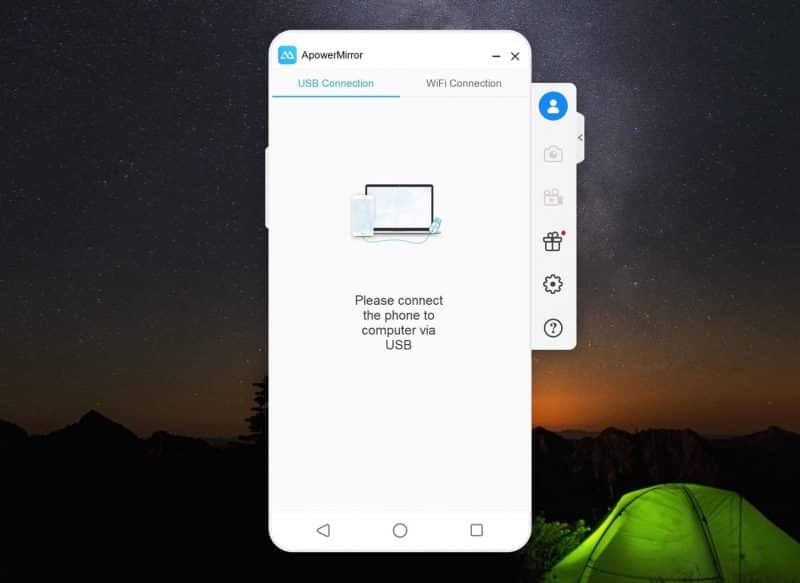
Step 4. In the next step, connect your Android smartphone to the computer via USB Cable.
Step 5. Now look at your Android screen, you will be asked to grant the notification access. Make sure to tap on the ‘Start Now’ button to mirror your Android device on the computer.
That’s it, you are done! Now you will see the entire Android screen on your computer. Now, you can send and receive Android text messages right on your computer screen.
More than half of android user love taking pictures with their android, and this one of the main reason why some people purchase android phone and this also one of the principal reason why android phone are popular, some of my visitors ask me this question “which app is the best in play store to edit pictures” so am written this article for all those who are looking for the best android editor on android
Best Photo Editing Apps For Your Smartphone
Not all these below editors are free. Some have in-app purchases, which will require you to purchase some options in it, but if you do not have money, you can download their crack versions. Let jump into the list of top best photo editor apps
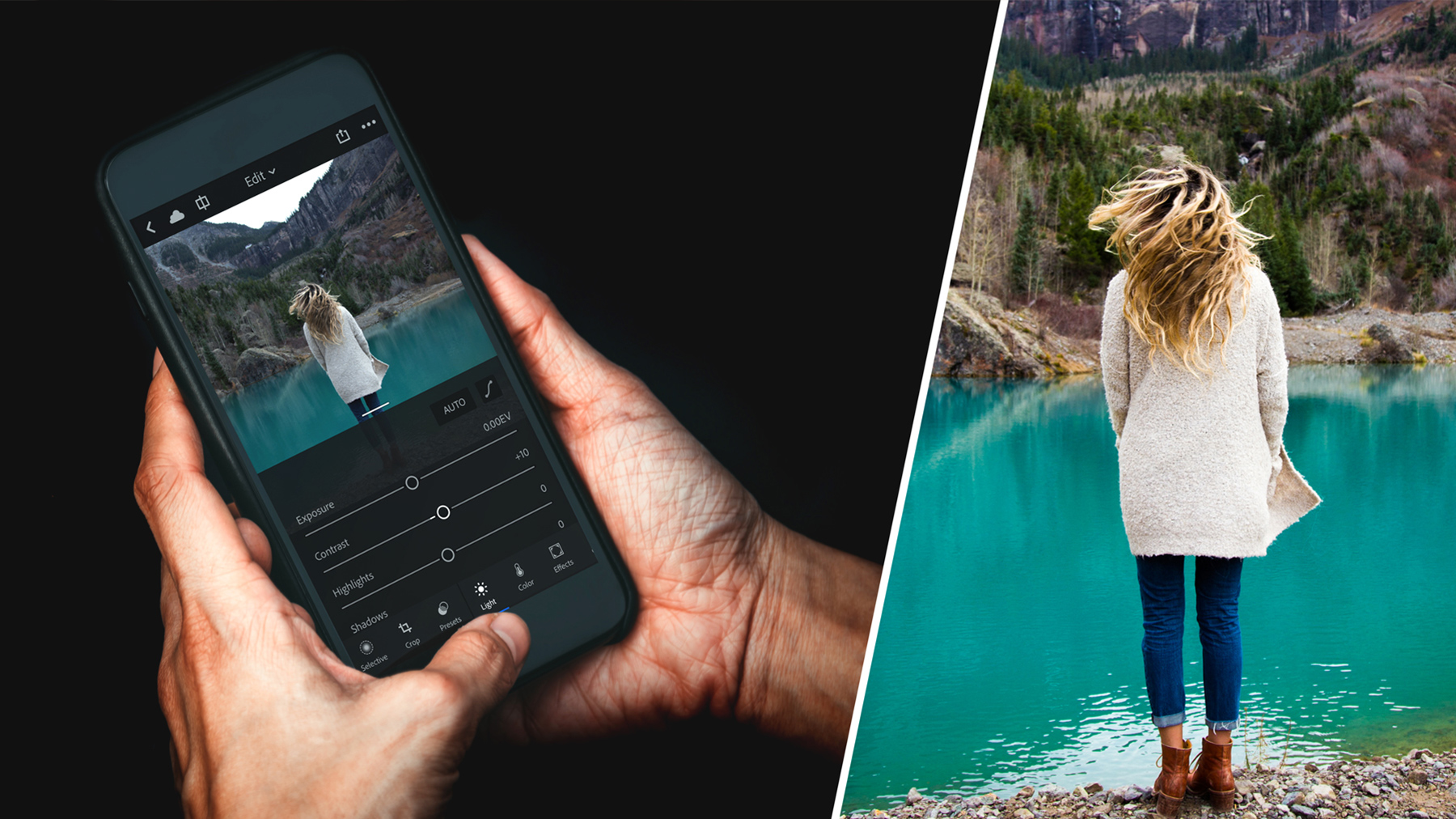
Adobe Lightroom Mobile has a pc version and it the best photo editor on pc and also, on android phones, it has all feature a photo editor has to have, This app has a 30-day trial, but those who have a Creative Cloud subscription can keep using it after the trial version. In this app, you can also sync with desktop versions of Lightroom through the sync option.
this app is almost the same with the above app called Adobe LightRom, this app was created by the same developer who made Adobe Lightroom Mobile,this app is very nice to do all your editing
This is one of my favorite and photo editor.. Now when it comes to photo editing features that converge around things like collages, there are few apps that are better than PicsArt but they only do focus primarily on collages and thus, have a bunch of features for that in it. There is still the basic photo editing things like filters, controls, and adjustments along with some unusual features like finger-painting and stickers in it.
AirBrush continually updates with new features and effects to stay up to date with editing standards. It’s the best photo editing apps for selfies.AirBrush was designed to be the best photo editor with user-friendly retouch tools, cool filter options, and natural, beautiful results!
It is one of the most popular and best photo editor app for android this year, the reason behind this is it has a various range of filters, designed specifically for selfies. It has filters that make your skin look amazing! It also had Beauty Functions moreover you can create Collage with the help of Candy Camera.
LightX is another photo editor Android that you should have. The app features almost everything that needed to be the best photo editor in the Google Play Store. You can edit pictures using various advance photo edit tools like Color mixing, Curves, levels and vignette effects. You can also edit brightness, Contrast, Exposure, Hue, Saturation, Shadows & Highlights of pictures.
Well, Photo Lab is another powerful Android photo editing tool available on Google Play Store. The app provides over 640 beautiful frames, effects, filters or montages to transform the look and feel of an image. The app also houses lots of photo editing feature which can be very useful to those belonging to the Photography field.
This is one of the simplest and best photo editing apps. In this app, you can add a number of filters, effects, text and much much more. This app is mainly designed for tablet users. In this app, you can literally add unlimited effects to your photos so you can make them look cool.
This photo editing app is freely available in the Google Play Store and is the very good app to edit photos on your Android. Also, this app provides lots of options to edit a photo like the smart blur, focusing, effects, frames and much much more. This app has very positive user ratings and very much popular among Android users who generally edit their photos.
PicsSay Photo Editor
This is one of the best Android photo editing app which offers a wide range of tool to edit a photo. This app also has very positive user ratings in Google Play Store. You can add custom text to any photo with the help of this.
Today we have a solution for all those who are facing low ram issue, this is not a big solution but its better than nothing, so if your phone is lagging or you are facing minor ram issue follow this article to the end and learn how to free up some ram space, ram is one of the most important hardware in your mobile phone because with a low ram on you device you will be unable to multi-task smoothly so here is our guide on how to free up ram space on your device also note that you will need to be doing this every end of month to free up space but if you like you can do it every two months or weeks. also read how to increase android ram here
How To Clean Up Your Android Device To Make It Faster
Some of this app will require you to download a third-party app in other to free up ram space on your android device while the other method does not require any third-party apps, now follow the below methods.
#1 Make Sure You Have The Updated Phone
Android Update
Well, Android update can have bug fixes and overall improvements which can help your Android smartphone to perform better. You can go to Settings>About Device> Software Update to check for any update. If you find any pending update, then make sure to update it as soon as possible.
#2 Clear App Cache Junk Files Using CCleaner:
Clear App Cache Junk Files Using CCleaner
This is one of the best cache clearing apps that lets you clear all the junk files with a single click. This can free up your storage memory up to 1GB and even more. So have a look on the below steps to clear cache and junk files using CCleaner app.
First of all download and install this cool app CCleaneron your Android device.
Now launch the app and click on Analyze button there and then after scanning click on Clean.
A cache clearing process will start all your cache and junk files will get cleared.
Your storage space may increase and our Android will starts working better.
#3 Clear App Cache & Junk Files Using SD Maid – System Cleaning Tool:
Clear App Cache & Junk Files Using SD Maid – System Cleaning Tool
In this, you will need a rooted Android and this app works perfectly with rooted Android to remove the cache files with the deep scan of your system. This is much better than above but you just need a rooted Android.
Click on scan button and remove all the unnecessary files from your Android using this.
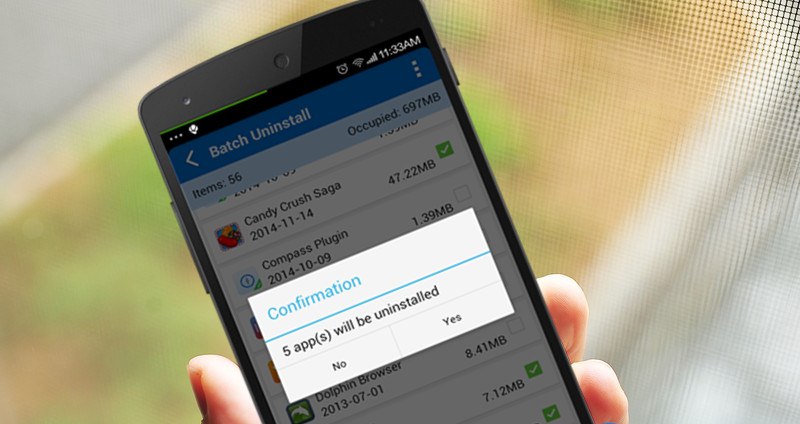
#4 Uninstall and disable Unused Apps
Uninstall and disable Unused Apps
It is the boring method but it does wonders to your smartphone. You need to uninstall the unused apps. Uninstalling unused apps will not only free up your storage capacity but also free up some ram that is used by the app’s resources. To uninstall any app Go to Settings>Apps>Uninstall
#5 Reduce or Turn Off Animations
Reduce or Turn Off Animations
This is one of the popular method which can make your Android device to run incredibly fast. Animations make android’s performance too much sluggish and slow. Therefore, make sure to turn off or reduce the animation. You can reduce Android’s animation by going through Developer options and then reduce the animations effect.
#6 Make Use Of The Lighter Version Of App
Lighter Version Of App
Almost every popular apps now have a lighter version which consumes less memory and ram. Facebook Like, Twitter, Messenger Light, YouTube Go are just a few of them. These apps normally require less storage space to install and also consumes fewer resources and internet.
#7 Using Startup Manager
After cleaning all the junk and cache files, you need to clear all the apps that are loaded during the startup. This app not only makes your Android device laggy, it consumes battery life too! Therefore, make sure to manage the startup.
Startup Manager aims at helping disable/enable startup items from system boot for Android devices including smartphones and tablets. To disable an item from system startup, uncheck the application from the list (recheck to restore and it will start again). For another item that does not start with system boot, please use “Customize” to add and enable it to start with system boot.
#8 Factory Reset
Factory Reset
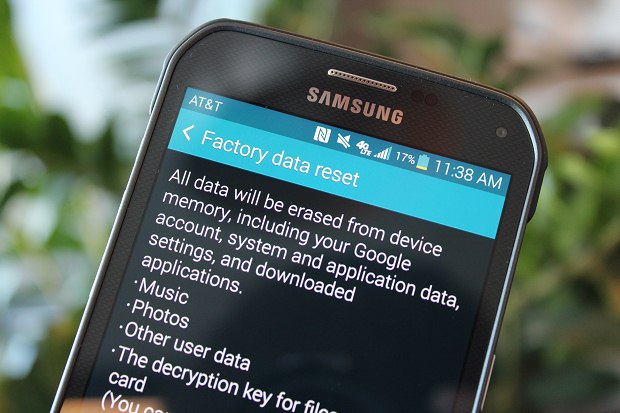
If the all above methods failed then try doing a factory reset of your Android smartphone. Factory reset is the best way to free up unused space and getting rid of many junk files.
Best Powerful Tools To Customize Your Windows xp,vista,7,8,10
Windows is the most popular operating system as compared to other os in the market. Windows provides users far more features like android mobile phones.windows also has some nice software like android phones that you can use to customize your device.if you are one of those who love customizing devices then this article is for you.i will share you some of my best and most popular softwares to customize windows operating system.
Best Powerful Tools To Customize Your Windows 10
before we jump into the list of top powerful tools to customize windows 10 I want to let you know that this software also works on windows vista,XP,7, and 8.but they look more cool on windows 10
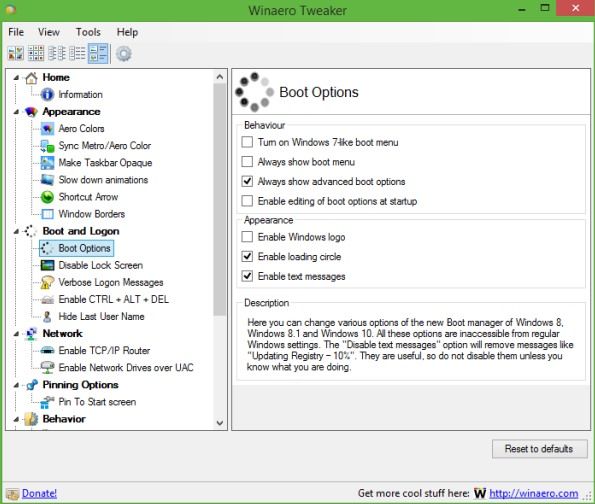
This is one of the best tools to customize Windows 10 user experience and also this is a freeware tool that works perfectly with Windows 10. Winaero Tweaker is a portable application and does not require to be installed. This is a universal tweaker software that supports Windows 7, Windows 8, Windows 8.1 and Windows 10. You will find lots of options and tweaks that just keep on varying according to versions of Windows you are running on.
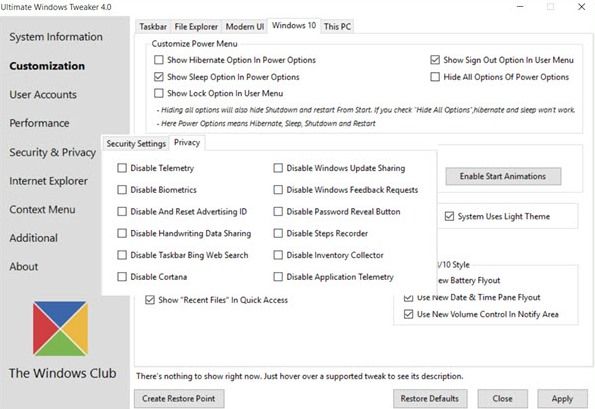
This tool is better than all other and works exactly the same as its name indicates that it’s an ultimate tool that allows users to make lots of changes in Windows 10 according to wish. While you may be able to access all these via the Windows 10 Settings app, the Registry Editor or the Group Policy Editor, Ultimate Windows Tweaker makes things easier for you by offering all useful tweaks from its single UI.
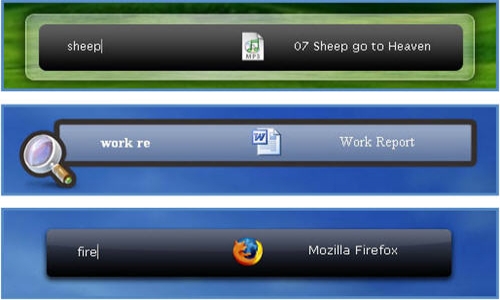
Launchy is a free cross-platform utility designed to help you forget about your start menu, the icons on your desktop, and even your file manager. Launchy indexes the programs in your start menu and can launch your documents, project files, folders, and bookmarks with just a few keystrokes. Pressing ALT + SPACE will immediately trigger launchy, where you can type the name of any program or folder.
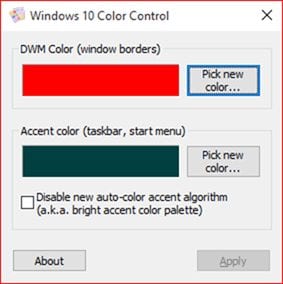
Windows 10 Color Control is another best Windows tool which allows users to set different colors for the taskbar as well as window borders. Normally, on Windows 10, you can’t set a different color for the taskbar, however, the Windows 10 Color control brings colors to your taskbar. So, it’s another best powerful tool that you can use to customize your Windows 10.
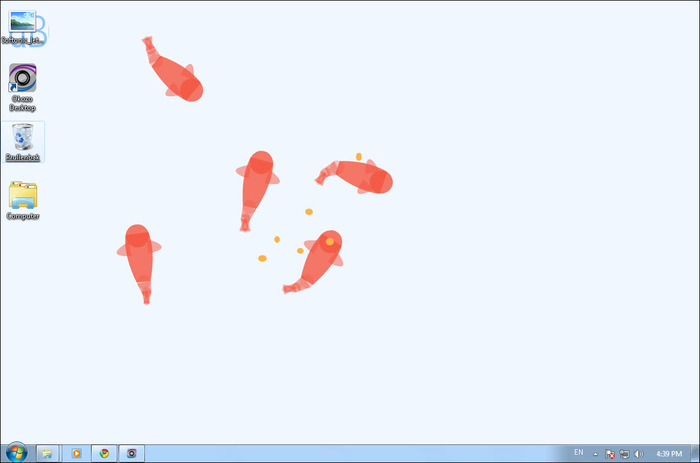
Okozo is a website that lets you download the bunch of live wallpapers. The wallpapers are beautiful and can help you customize your Windows. You can download live wallpapers that show time or can play music or can do various other tasks. You can download its client for Windows and can get newly added wallpapers from the software itself.
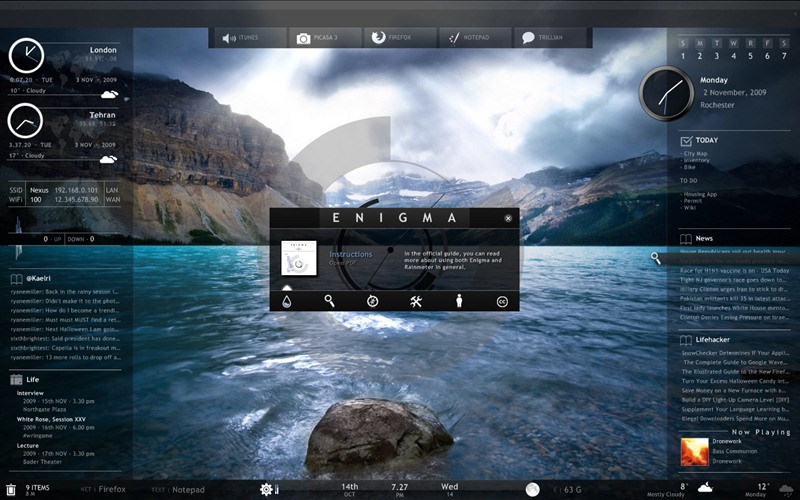
Rainmeter displays customizable skins, like memory and battery power, RSS feeds and weather forecasts, right on your desktop. Many skins are even functional: they can record your notes and to-do lists, launch your favorite applications, and control your media player – all in a clean, unobtrusive interface that you can rearrange and customize to your liking. Rainmeter is at once an application and a toolkit. You are only limited by your imagination and creativity.
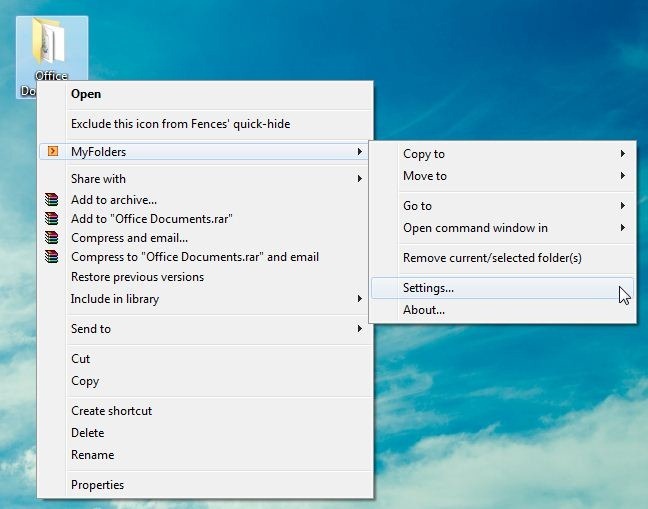
The MyFolders Windows Explorer Shell Extension saves your time by placing any folder at your fingertips. Copy/Move files or Open any folder with just a few clicks! You can get a MyFolders option listed on a right-click menu with several convenient utilities to access folders. You will get options like the Copy to, Move to, Go to, Open command window.
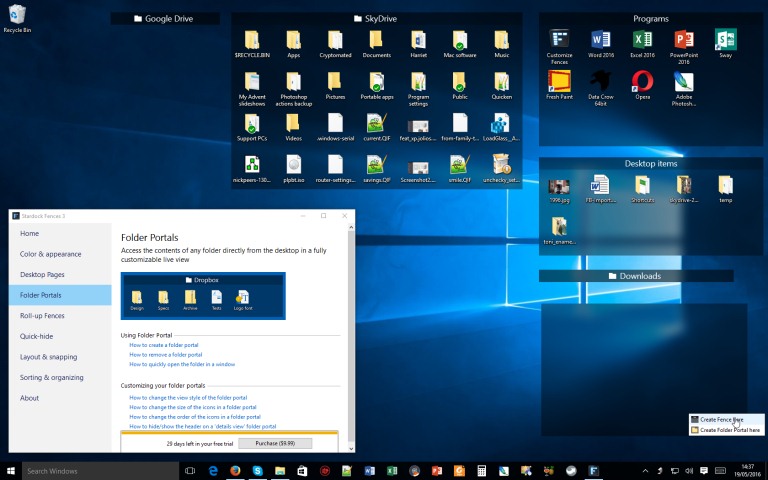
Fences are very similar to the Android group feature. As we know, Android does provide a feature to group the apps and folders on the home screen for easy access. Fences act the same, it helps you create groups of apps and folders on your computer. You can even customize your created groups on your desktop with different icons. This app is great for those who have lots of software installed on their computers.
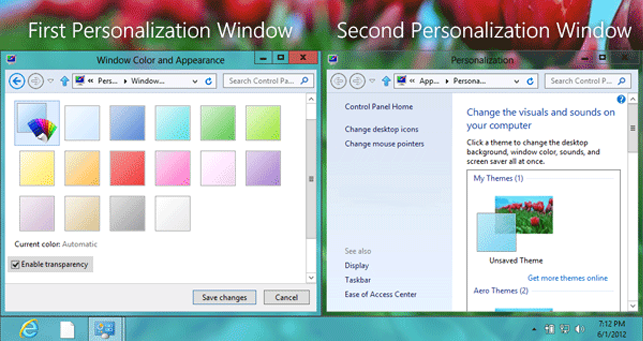
Well, if you want to enjoy the Aero Glass transparency feature that is available on Windows 7, 8 and 8.1, then you will love this tool. Aero glass transparency feature is missing in Windows 10. So, this tool will help you bring back the Aero glass to the window border with blur effects.
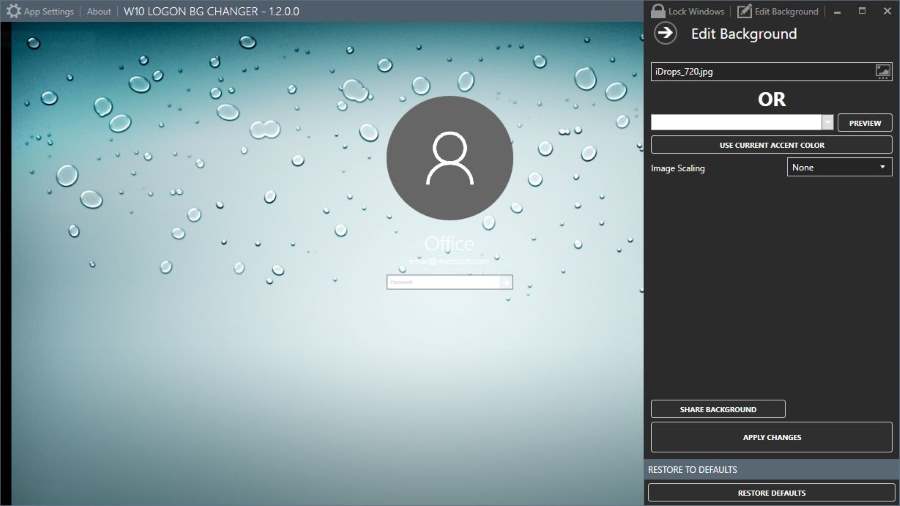
Well, if you don’t like the default desktop wallpaper as login screen background then you will love this tool. This tool lets you set a custom image of your own as a login screen background. This tool is free of cost and will help you to replace the default login screen background image with a solid color.
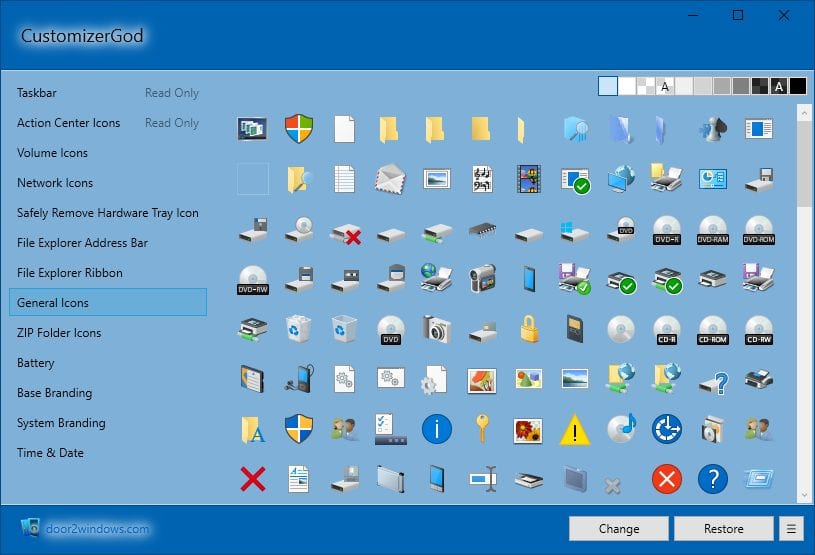
This is an awesome tool that lets you customize your Windows 10 desktop. You can customize almost everything using this mini too. You can make your start button look different. You can use this tool for editing any image resources
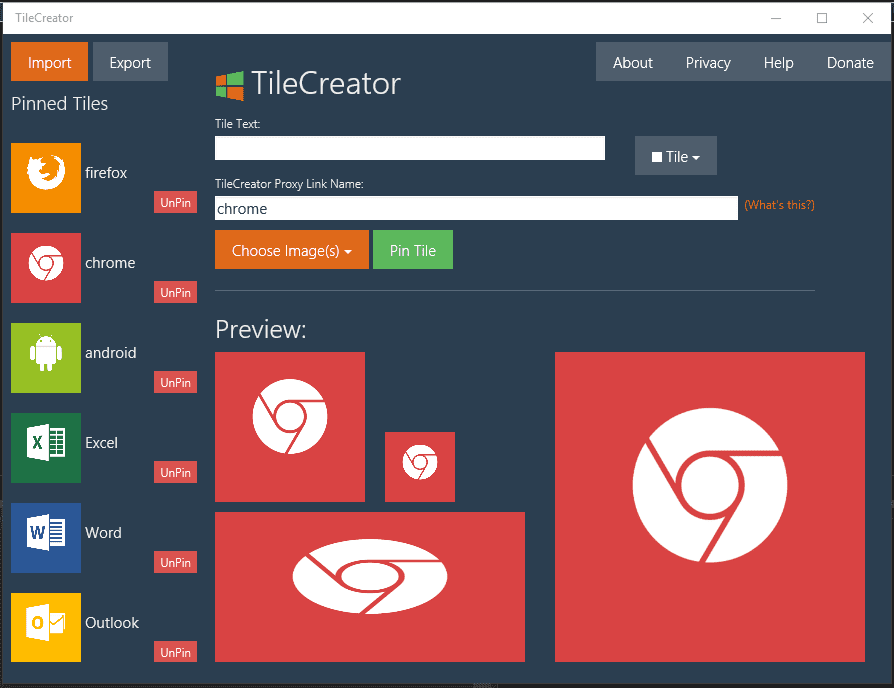
This is an awesome tool that you can download from the Microsoft store. This tool will be very helpful if you want to change the visual appearance of tiles on the Start Menu. This tool will let you customize the text, background color and image of any app’s tile.
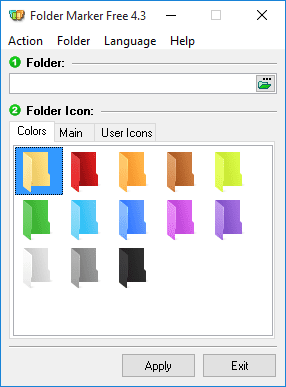
This tool lets you add colors to your windows folder. Users just need to install the tool and then right-click on any folder to make their icons look beautiful. This tool can assign icons to a folder from file formats ICO, ICL, EXE, DLL, CPL or BMP.
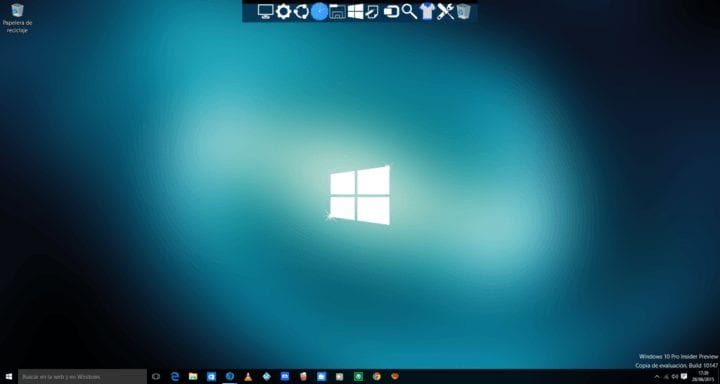
This is actually a launcher. This tool lets you pin shortcuts anywhere on the desktop. You can add shortcuts for apps, programs and even folders in a small-sized dock using the Rocket dock tool.
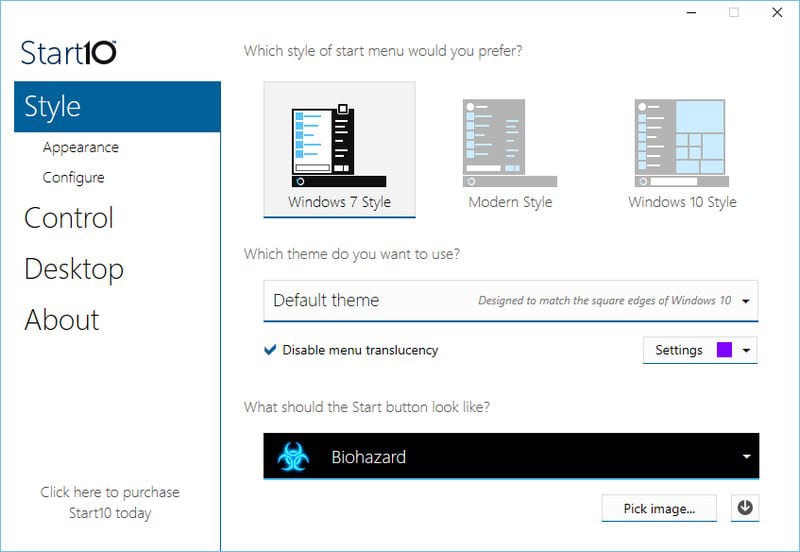
If you want to customize your Windows 10 start menu then Start10 will be a perfect choice. This tool changes the look of your default Start menu and lets you choose your background and color and use different start menu themes.
Android nowadays is like a computer you can perform so many tasks on android phone, However, many people have a lot of knowledge on android than on computer, this mobile device has many apps as compared to any other device, now you can create android apps using your mobile device web browser, but this is just for people who have high spec device because this method can not work on low spec device with 1gb ram, so if you want to learn how to create an android app you need to have good mobile device or computer, this method is for amateurs who have small knowledge about building android app, when i mean amateur I don’t mean that only them can use these bellow methods, even pro can use them.
7 Best Ways To Make Android Apps Easily Without Coding
i have listed below some nice website that you can go and create android apps, You just need to use any of these below sites and create your dream app
Mobile Roadie is an app that helps in creating and managing iOS or Android app. You can even use the free Mobile Roadie Connect app so that you can have a preview to your app accurately same as users on their devices. This app supports almost all types of media files, with automatic importing of RSS and an auto-refreshing fan wall through which users can easily chat with each other in real life. For your site or blog, you can even push content straight to your app or pull content from it. The API provides you for fetching data in various formats such as XML, PHP, HTML, CSV, etc. You can easily give a craft look to your app and even apply to all platforms.
TheAppBuilder provides a suite of apps which suit the employees, clients, events and brochures having two different approaches available. You can even build your app by using the online toolkit provided or either the training provided. This will work in creating the layout of your app and populate it with initial content. You can even provide the users with a window having multiple apps by using the dedicated App Library and customize it. It always provides usernames and passwords to enable login with existing credentials and user groups which will help in protecting your both public and private apps Building and updating the layout and content of the app is an easy task. This provides you a feature of multiple updates and publishes them on different platforms with a single click. It supports native iPhone, iPad and Android having updates going on.
AppMachine is an easy-to-use platform to create native apps for both iOS and Android. With the drag and drop feature, you can accommodate all building blocks such as information, videos, etc. This helps you to link your app with Facebook or any online stores. It’s your wish you can design your app in your way and style having navigation paths, colors, fonts, etc. Do test your app and check its progress on your computer, mobile or any tablet. Once it is thoroughly tested, publish and promote your app and analyze the content of the user.
Buzztouch is software and an incredible community that helps people make native iOS and Android apps. Unlike many “app builders,” there are no limits to what kinds of apps you can make using Buzztouch. The Buzztouch Control Panel is open source web-based software that is used to administer mobile apps created using Buzztouch. BtCentral helps developers create mobile applications (“apps”) and manage dynamic content within existing apps.
This site has a Drag & Drop editor that means anyone can be a developer. You can build custom native apps like a pro. This website has some good user reviews and its recommended to those who want to create amazing Android apps in very less time.
Well, this is another best web-based service which you can use if you want to create your Android app. The best thing about BuildFire is that the app builder was built with you in mind. Instead of having to deal with complicated code to develop and manage your app, all you need to do is click and edit.
Using AppYet, anyone can create a professional Android app. There’s no programming knowledge required, only take few minutes to build your first app. All you need to provide is links to Rss/Atom feed or website, they are automatically converted into beautiful 100% pure native apps for Android.
Step 1. Go onto the app store and download “Betternet VPN” its free. (Works best with betternet)
Step 2. Start your free trial for 7 days then you can cancel right there or actually pay it’s up to you. (You must start the trial though)
Step 3. Once you do step 2, Click the button under the “Connect” button and put your location in Australia. Then click “CONNECT”
Step 4. Closeout instagram completely then reopen Instagram go to settings and you should see “Request Verification” under “Account”
The app must be on the latest version
You’re now done. This also unlocks other new features like a nametag that you can scan to instantly follow people play around with it and you will find new things within your app!
Whatsapp is the most use social media app this app has a lot of cool features like video call and audio call WhatsApp app is now more than social app you can perform a lot of cool things on it like hide your online status and also hide message view icon and another cool feature which WhatsApp users are waiting to get on their Whatsapp app is to see who view their WhatsApp profile pictures, this feature is available on some third-party apps that can help you see who view your Whatsapp profile but is not available on WhatsApp apk. Today am going to show you how to see who view you WhatsApp profile picture
How to check who visited your Whatsapp profile
This method is very easy, you are going to need a third-party app which am going to provide a link where you can get it on your android device without any problem
Using WhatsApp viewer app
Whatsapp viewer app is an android app that helps you to see who visited your WhatsApp profile in the past 24hours. Here is the below steps that you can use to see who view your WhatsApp profile with this app
Step 1. First of all, download WhatsApp Viewer app on your Android smartphone.
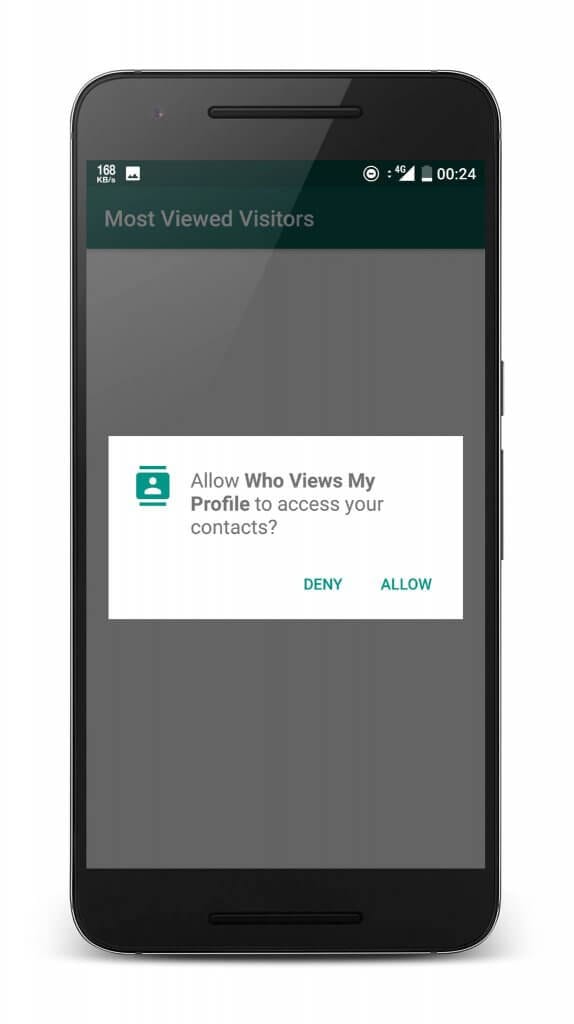
Step 2. Once downloaded, open the app and then install it normally. Now, you need to grant all the permissions that the app asks for.
Using WhatsApp Viewer App
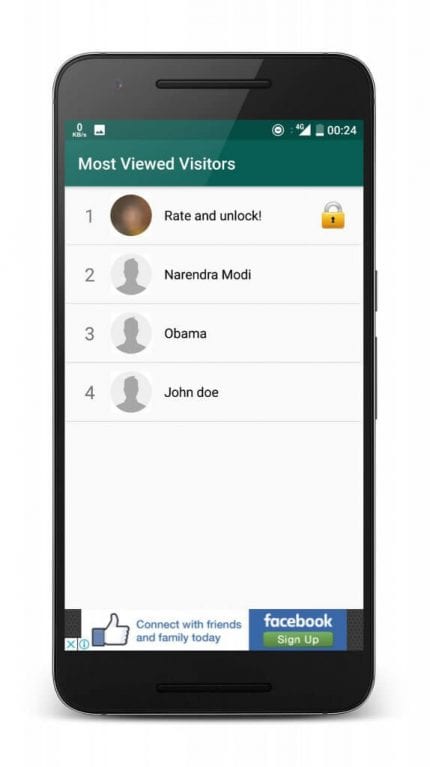
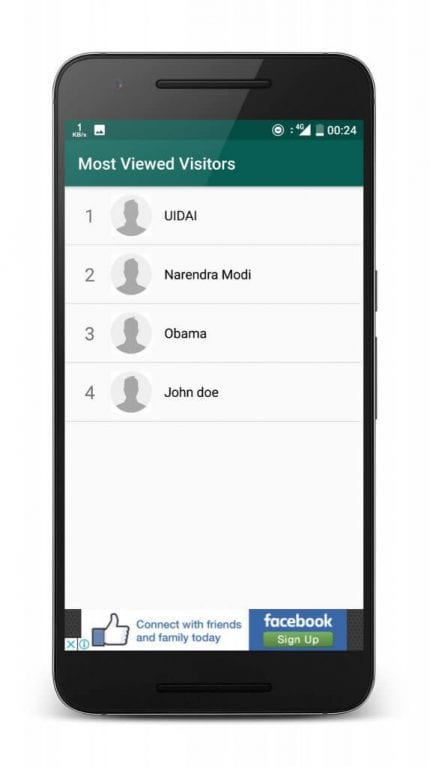
Step 3. After allowing the contact access, the app will show you the list of people who have visited your WhatsApp profile in the last 24 hours.
Step 4. However, in order to unlock the 1st persona, you need to rate the app.
Using WhatsApp Viewer App
So, this is how you can use WhatsApp Viewer App on your Android to check who has visited your WhatsApp profile in the past 24 hours.
Method two Using WhatsApp- Who Viewed Me
Step 1. First of all download and install up to the app named WhatsApp- Who Viewed Me
Step 2. After installing up the app runs it from its icon present on your home screen or in the app’s dock. You will need to wait for some seconds until this app scans for all your contacts so that it can find out who has visited your WhatsApp profile.
Check Who Visited your WhatsApp Profile
Step 3. After the quick scan, this app will respond with the list of all those contacts who have visited your WhatsApp profile in the past 24 hours.
Android is the most use os on mobile market this device can do more than what you think it can, a lot of hackers are now putting all their hard works now on hacking peoples mobile device because it has 40 per cent of peoples information, so in today’s tutorial am going to give you some codes to check if someone is spying on your mobile device. Most of these spyers developed apps with viruses and post them on app stores to still user data and also control their device without them knowing. So let look at these cool codes which you can use to Find Out Who’s Tracking You Through Your Android
How To Find Out Who’s Tracking You Through Your Android
Code 1: *#21#
This code will let you find out whether your messages, calls, and other data are being diverted. You can find details about call forwarding. You can even find out where your data, voice, fax, SMS, sync, async, Packet access, and pad access call forwarding enabled or disabled
Code 2: *#06#
This code is used to find the International Mobile Equipment Identifier (IMEI). This code will be very useful to find the IMEI number of your smartphone. You can note down your IMEI number in a safe place. With the help of IMEI number, you can find your phone if someone steals it.
Code 3: ##002#
This is a universal code to deactivate all call forwarding. This will immediately switch off all the redirections from your phone. If you feel that your call is being redirected, then you can dial this code to stop the redirecting. It will be a good idea to use this code before you have to use roaming so that the money won’t be taken from your account.
Code 4: *#62#
If your friend tells you, that your number is saying no-service or no-answer, then you need to dial this code on your smartphone to find out where your calls, messages, and data are being redirected. There are possibilities that your calls are being redirected to one of your cell phone operator’s numbers
Code 5: *#*#4636#*#* or *#*#197328640#*#*
This special code allows anyone to track your location and also determine whether someone is following you.
Type in the following code in dial pad and then select the section called UMTS Cell Environment, then choose UMTS RR info. Now note down all the numbers under the Cell ID.
Now move to the main menu and then click on MM info tab > Serving PLMN. Now note down the numbers under Local area code (LAC).
After noting down these two numbers open the website opencelid and select the fourth tab to the left. From there you can determine the location on the map of the basic station that your phone is connected to.
switch from Gbwhatsapp to Whatsapp and Whatsapp To Gbwhatsapp
0 89
WhatsApp is the best social app on all platform android,ios.window, and web, You won’t believe it, but the fact says that WhatsApp has recorded a steady growth over the past few years and it’s right now the most used instant messaging app.this app was created in May 3, 2009, and have updated with a lot of cool features like voice call, video call, status and recording.this app does not only does this other job, but it also allows users to send files, upload status, etc. So, WhatsApp is nothing less than social networking app.so today I’m going to show you how to move your GB WhatsApp backup to official Whatsapp,
How To Switch From GBWhatsApp To WhatsApp Without Losing Chats
Unfortunately, just like all other instant messaging apps, WhatsApp also lacks some important features like privacy options, customization, conversation locker, etc. So, avail such things, Android users choose to install GBWhatsApp for Android.
What is GBWhatsApp For Android?
GB WhatsApp is the best mod version of Whatsapp this app has more cool features than any other Whatsapp app.gbwhataspp is not found in play store, but you can get it from any third party store for free,or from here.
Some cool feature of GB WhatsApp
Hidden chat feature
Hide writing status
Hide recording status
Up to 50 MB of video files can be sent
Hide online status, double tick
Hide seen message, delivered message staus
Always online feature
Able to send more than 10 images
New and customized emojis for GB WhatsApp users
Backup feature
Download status
Download free amazing themes created by some users of GBWhatsApp
Dual/Multiple WhatsApp accounts
Video status limit to 7 minutes instead of 30 seconds can be shared
Enable password
Amazing tick styles
Cool launcher icons
Change notify-bar icon
Multi gif providers
Change video player
Log available
Message Scheduler
Method #one How To Switch From GBWhatsApp To WhatsApp Without Losing Chats
GB Whatsapp and official Whatsapp do not back up their files in the same account that’s when you more one of them to another you will see that the backup system will not back up a files, they both have their different cloud storage Below, I am going to share a working method that would help you to shift from GBWhatsApp to WhatsApp without losing any data
Step 1. First of all, open GBWhatsApp on your Android and head to the Settings > Chats.
Step 2. In the next step, tap on the ‘Back up Chats’. Make sure to back up the GBWhatsApp chats on your Android device.
Step 3. Now open the File Manager and head to the GBWhatsApp folder. There you need to edit and rename every folder starting with ‘GBxyz’ to ‘xyz’. For example, ‘GBWhatsApp images’ becomes ‘WhatsApp images’
Step 4. Once done, head to the Google Play Store and download the WhatsApp Android app.
Step 5. Open WhatsApp and login with the phone number. Once done, you will get the option to restore backups.
Method #two how to move from WhatsApp to GB Whatsapp
Do you know you can also move from Whatsapp to GBwhatsapp, yes this is possible just follow the below steps on how to move from Whatsapp to GBwhastsapp without any problem these steps are the opposite of the above step on how to move from GBwhatsapp to WhatsApp
step 1. First of all, open WhatsApp on your Android and head to the Settings > Chats.
Step 2. In the next step, tap on the ‘Back up Chats’. Make sure to back up the WhatsApp chats on your Android device.
Step 3. Now open the File Manager and head to the WhatsApp folder. There you need to edit and rename every folder starting with ‘xyz’ to GBxyz’. For example, ‘GBWhatsApp images’ becomes ‘WhatsApp images’
Step 4. Once done, to this lin and download GBwhatsapp.
Step 5. install your GB Whatsapp and Open next login with the phone number. Once done, you will get the option to restore backups.


















 FREE OTT CONTENT