WhatsApp Wallpapers Plus !! Add Amazing Wallpapers To Your Chats

WhatsApp has become the most used instant messaging platform in the world. With more than 29 million messages being sent on the platform every minute, it has become a good part of our daily lives. Add in the fact that the app now allows us to make video and voice calls, all while charging us marginal data, and you see why it is a clear winner for many people. However, this is not the sort of app that should be left dull.

Seeing as we spend a lot of daily time on it, your WhatsApp should be as aesthetically pleasing as it is functional. That is where the argument for wallpapers enters the equation.

With wallpapers, you can change the look and feel of your chat boards to make it more personal. Besides being intimate, you also get to be the envy of your friends, family, and other contacts when you post a screenshot with your unique wallpaper.

That said, there remains the question of where you would get these wallpapers. Thankfully, you don’t have to look farther than the WhatsApp Wallpaper Plus app.


What is WhatsApp Wallpaper Plus?

As the name implies, this is an app dedicated to applying wallpapers to your WhatsApp chat app. Given the Plus name, you can also deduce that there had been one before this, and this new version happens to be the improved version of that one.

Thus, the WhatsApp Wallpaper Plus is the one-stop hub for all the amazing wallpapers you might want to have on your device. The app comes preloaded with themed wallpapers – and there are so much of them, you cannot just scroll by without finding something that will catch your fancy.

The best thing about this app is that it comes ingrained into the system after installation. Thus, you might not see an app icon on the app tray since it is being applied system-wide instead. This sure beats having yet another icon look like the WhatsApp logo, taking away the confusion that must have come with that.


Why use the WhatsApp Wallpaper Plus?

There are a lot of reasons why you will be better off with this app. Some of such include:

Personalization – The basic WhatsApp is simple and generic as it is. You should spice things up with your chat wallpapers which you can change anytime as you see fit.

Store – The app comes with hundreds of wallpaper options in store, and more are being added frequently

System integration – Every installation of the WhatsApp Wallpaper Plus goes straight into the system side. This means you don’t have to set up an app or tweak some settings before you start enjoying what the wallpapers app brings on board.

Saves space – Downloading numerous wallpapers on your phone will take up a lot of space, but this app doesn’t. That, and we have not even mentioned the stress of having to go looking for hundreds of images by yourself.

Compatibility – Whether you are using the official version of WhatsApp or the modded alternatives (such as GBWhatsApp, WhatsApp Plus, WhatsApp Pro, etc.), this app works well regardless.


How to use WhatsApp Wallpaper Plus

As mentioned above, the application is easy to use out of the box. Here is a simple guide to make your usage process even smoother.

Step 1 – Download the app the box below.

Download WhatsApp Wallpaper Plus Latest Version For Android

Version : 3.00 |  Size : 60MB


Step 2 – Delete WhatsApp Wallpapers App if you installed it before (Important)

Step 3 – Run the installation package after installing. If your Android hasn’t been set to allow installation from external sources, click on allow install app from unknown sources.

Step 4 – Open your WhatsApp and go to Settings ➤ Chats ➤ Wallpapers ➤ Wallpaper Library.

Step 5 – Select your choice image, and it becomes your preferred wallpaper.

Note : If you want to set custom wallpaper for a specific chat or person, Click on the chat you want then Tap on the menu icon (three dots at the top right-hand corner), then click on the Wallpaper option which should now be available to you, Different options will be made available to you. Choose Wallpaper Library from these. Doing so should grant you access to a lot of images

In as simple as those six steps above, You now have a new wallpaper – and more whenever you need them.

Best Camera Apps For Android, How To Choose The Perfect Camera App

Camera Apps AndroidSince smartphones began having cameras within the turn of the millennium, photography has quickly shifted from a side and a secondary feature to one of the most basic things when choosing a phone. Although all modern phones now include a basic camera software designed specifically for their capabilities, these basic programs aren’t always an ideal option. Sometimes they lack some of the features that make the need for an external camera program very series.

In this article, we are going to discuss some of the most important programs that meet the needs of users for features. Although the basic camera software in phones often comes with features, it is probably very limited, and in some cases is constrained by very simple settings without advanced camera mode, but in general, you will probably find in this list the best camera software (photography software) that suits your basic needs and things.
Here we will mention the external camera applications available for both Android and iPhone. Although most of the camera programs that we will mention are available to both systems, some of them are exclusive to one of the two systems, and we will mention that of course.


VSCO Camera

VSCO: Photo & Video Editor
Developer: VSCO
Price: Free+ 

  • VSCO: Photo & Video Editor Screenshot
  • VSCO: Photo & Video Editor Screenshot
  • VSCO: Photo & Video Editor Screenshot
  • VSCO: Photo & Video Editor Screenshot
  • VSCO: Photo & Video Editor Screenshot
  • VSCO: Photo & Video Editor Screenshot

If you’re looking for a very close feeling to the main camera app on your phone, VSCO Cam may be what you’re really looking for. This application has a very simple interface without any complications or ramifications, but this doesn’t stop him from being overwhelmed by useful additional features. The app allows different types of shooting that comes to mind, and even supports the shooting of raw images in phones that support it, making it ideal for photography enthusiasts who can’t get a professional camera.

In addition to being a powerful and highly effective camera software, VSCO Cam includes a special photo editing section and one of the best photo editor options on phones. It allows controlling of many variables and even the application of filters and pre-set frames to help to improve the images and make them better in stages. Best of all, the app is completely free.


ProShot Camera

ProShot
Developer: Rise Up Games
Price: $3.99 

  • ProShot Screenshot
  • ProShot Screenshot
  • ProShot Screenshot
  • ProShot Screenshot

As in most areas, the best apps are usually paid and not free. ProShot is an example of this. Although it costs 4$ to buy, it is one of the best available options now. Instead of simple and poor-feature interfaces, this app offers several parameters that can be controlled at least similar to professional cameras in terms of appearance.

Of course, the phone camera can’t compete with professional cameras specialized photography primarily, but this application makes the phone camera as close as possible to professional cameras in reality. The app allows you to control white balance, ISO, shutter speed and focus of course. It also allows raw images to be captured, allowing later images to be used in advanced editing software such as Adobe Lightroom and Adobe Photoshop.


Camera FV-5

Camera FV-5 Lite
Developer: FGAE
Price: Free 

  • Camera FV-5 Lite Screenshot
  • Camera FV-5 Lite Screenshot
  • Camera FV-5 Lite Screenshot
  • Camera FV-5 Lite Screenshot
  • Camera FV-5 Lite Screenshot
  • Camera FV-5 Lite Screenshot
  • Camera FV-5 Lite Screenshot
  • Camera FV-5 Lite Screenshot
  • Camera FV-5 Lite Screenshot
  • Camera FV-5 Lite Screenshot
  • Camera FV-5 Lite Screenshot
  • Camera FV-5 Lite Screenshot
  • Camera FV-5 Lite Screenshot
  • Camera FV-5 Lite Screenshot
  • Camera FV-5 Lite Screenshot
  • Camera FV-5 Lite Screenshot
  • Camera FV-5 Lite Screenshot
  • Camera FV-5 Lite Screenshot
  • Camera FV-5 Lite Screenshot
  • Camera FV-5 Lite Screenshot
  • Camera FV-5 Lite Screenshot
  • Camera FV-5 Lite Screenshot
  • Camera FV-5 Lite Screenshot
  • Camera FV-5 Lite Screenshot

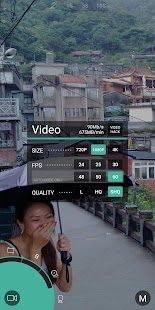
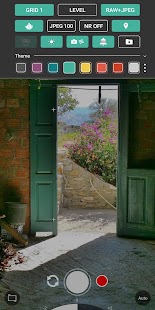
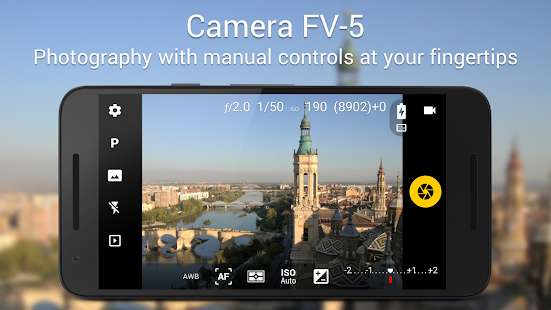
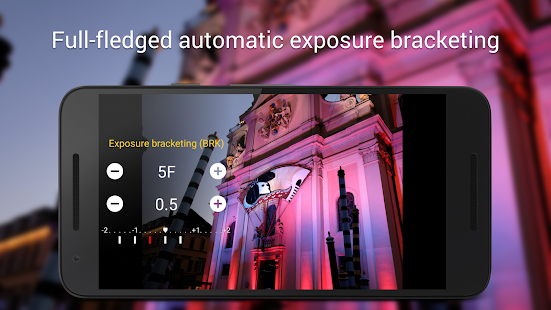
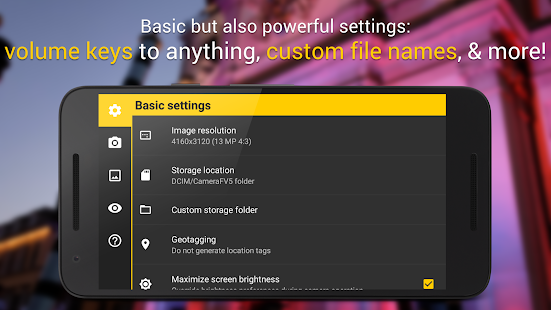
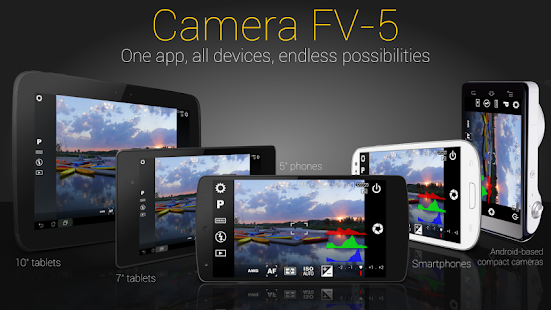
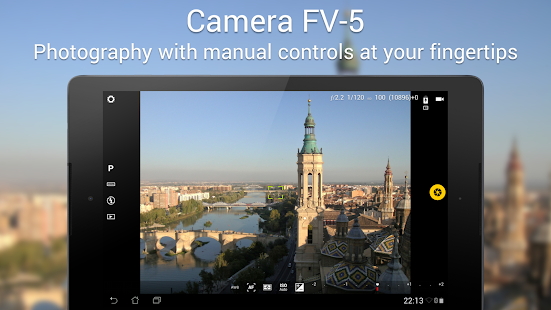
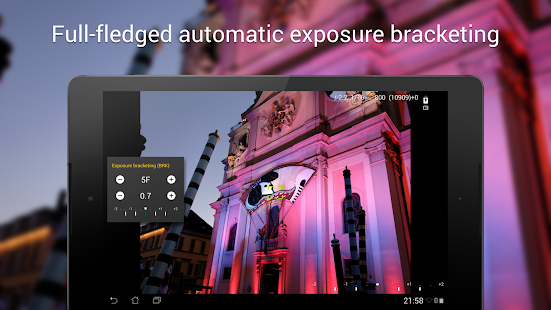
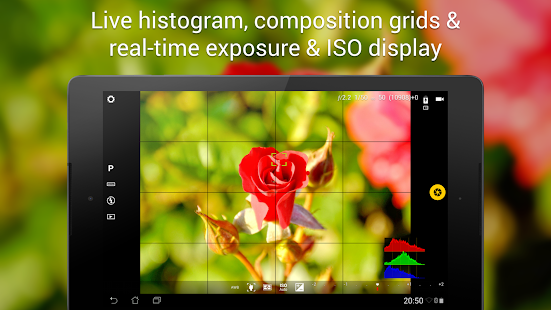
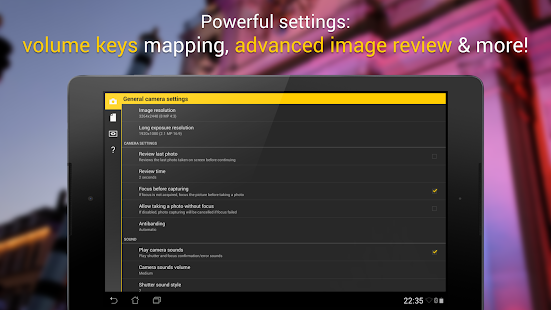
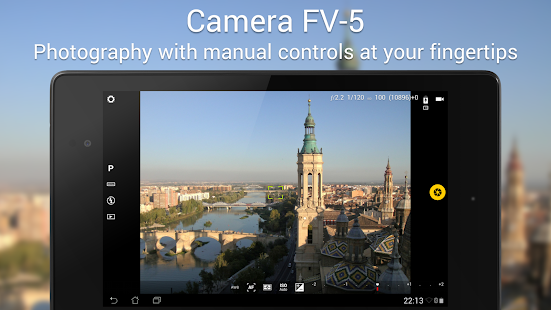
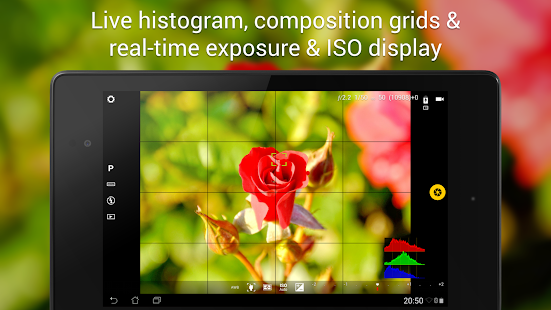
If you own an Android phone and want the closest experience to using professional cameras and taking the best photos with complete control of everything, the Camera FV-5 is definitely what you’re looking for. As the crowned king of imaging software on Android, it has a myriad of manageable standards and offers extremely helpful viewing options for professional photographers such as EXIF data and more.

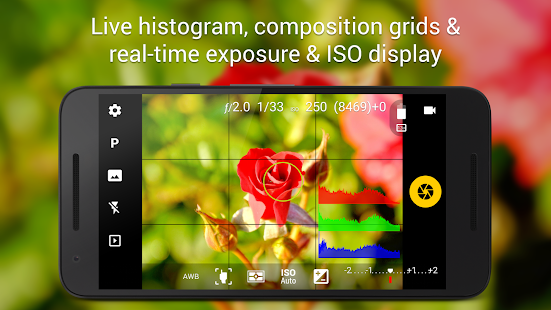
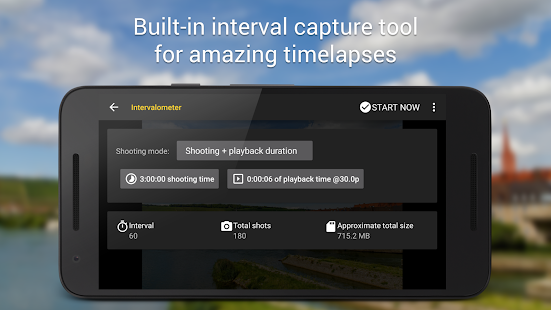
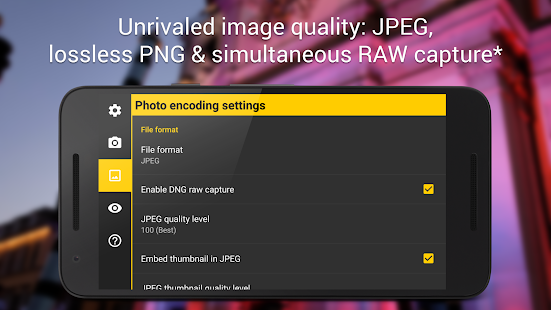
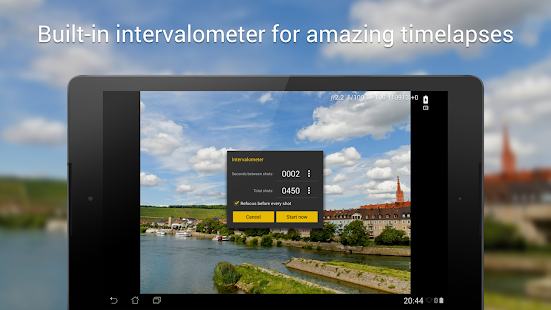
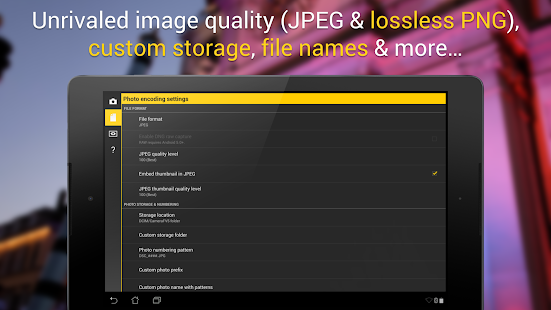
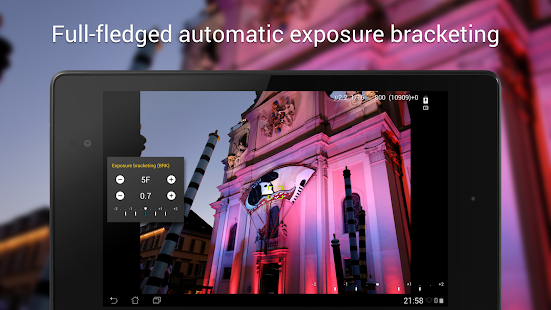
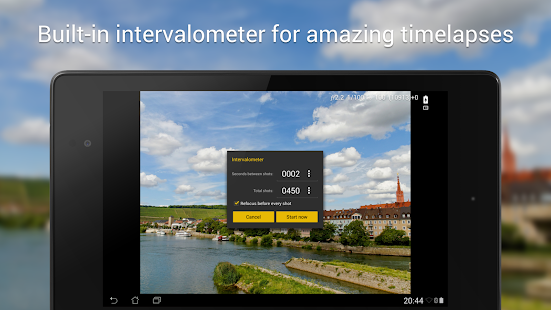
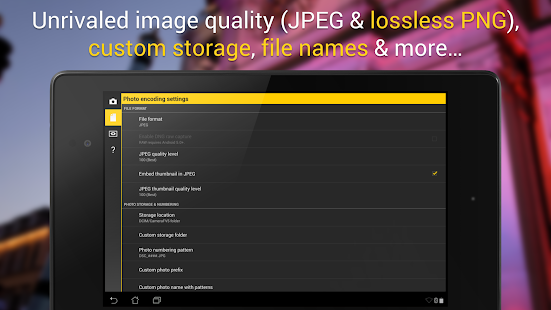
In addition to offering advanced options, it allows stunning night shots thanks to its Super Exposure mode and also saves images in the usual JPG or Raw format for raw images and even PNG format without any damaging compression of data in the image. And if you’re a video enthusiast, the app lets you capture videos in high resolution and even make time-lapse videos easily.


Camera Zoom FX

Camera ZOOM FX - FREE
Developer: androidslide
Price: Free 

  • Camera ZOOM FX - FREE Screenshot
  • Camera ZOOM FX - FREE Screenshot
  • Camera ZOOM FX - FREE Screenshot
  • Camera ZOOM FX - FREE Screenshot
  • Camera ZOOM FX - FREE Screenshot
  • Camera ZOOM FX - FREE Screenshot
  • Camera ZOOM FX - FREE Screenshot
  • Camera ZOOM FX - FREE Screenshot
  • Camera ZOOM FX - FREE Screenshot

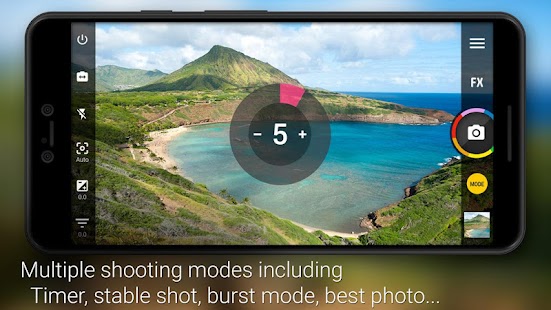
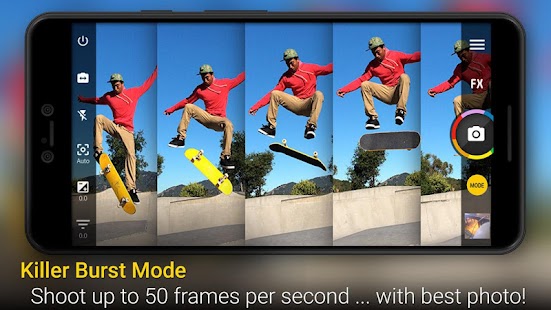
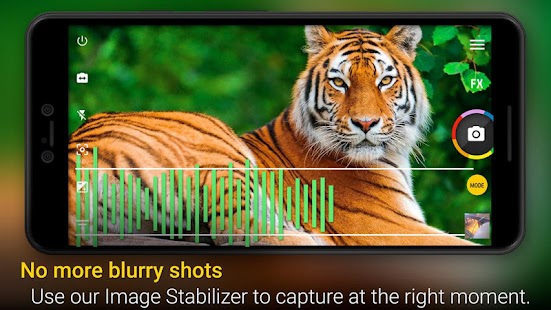
When you look at the name, it may seem that Camera Zoom FX imaging software focuses primarily on optical zoom. In fact, the main area of excellence of this app isn’t about optical zoom, but rather a fast image capture. The app focuses on the high-speed shooting that allows for up to 50 consecutive images to be taken in one second (depending on the phone’s hardware and processing capability of course). With the developers claiming that this application is the fastest in the Android world, it is difficult to dispute with this claim in fact.

In addition to the great shooting speed, Camera Zoom FX offers everything that might be thought of by anyone looking for a camera app. It includes the ability to control different areas of photography and can combine several shooting modes together, captures images in raw format and allows editing or making collages very quickly.


B612

B612 - Beauty & Filter Camera
Developer: SNOW, Inc.
Price: Free 

  • B612 - Beauty & Filter Camera Screenshot
  • B612 - Beauty & Filter Camera Screenshot
  • B612 - Beauty & Filter Camera Screenshot
  • B612 - Beauty & Filter Camera Screenshot
  • B612 - Beauty & Filter Camera Screenshot
  • B612 - Beauty & Filter Camera Screenshot

This is a very special application and offers a very easy and different experience for the user than what is available from other apps. The app includes all the basic parameters and control capabilities expected to be present in a paid camera app, but its main feature is the interface that adopts drag and drops to control and provides the user with the various settings that could be needed in a shooting program with the ability to work with only one hand.

How to Know if Someone Has Your Number on WhatsApp For Android

  1. Image titled Know if Someone Has Your Number on WhatsApp Step 13
    1
    Open WhatsApp. Tap the WhatsApp app icon, which resembles a white phone receiver and speech bubble icon on a green background.

    • If you aren\’t signed into WhatsApp on your current phone, you\’ll have to follow the on-screen setup instructions before continuing.
  2. Image titled Know if Someone Has Your Number on WhatsApp Step 14
    2
    Tap CHATS. This tab is at the top of the screen.

    • If WhatsApp opens to a chat, first tap the \”Back\” button in the top-left corner of the screen.
  3. 3
    Tap . This button is in the top-right corner of the screen. A drop-down menu will appear.
  4. Image titled Know if Someone Has Your Number on WhatsApp Step 16
    4
    Tap New broadcast. It\’s in the drop-down menu. A list of your contacts will open.
  5. Image titled Know if Someone Has Your Number on WhatsApp Step 17
    5
    Select at least one contact whom you know has your phone number. You\’ll need at least one person whom you know has your number in your broadcast.
  6. 6
    Select the contact you want to check. This should be the contact who you want to check to see if they have your number.
  7. Image titled Know if Someone Has Your Number on WhatsApp Step 19
    7
    Tap . It\’s on a green background in the lower-right corner of the screen. This will create your broadcast group and open its chat page.
  8. Image titled Know if Someone Has Your Number on WhatsApp Step 20
    8
    Send a message to the group. Tap the text box at the bottom of the screen, type in a brief message (e.g., test), and tap the \”Send\” 

    Image titled Android7send.png

     arrow to the right of the text field. Your message will be sent to the group.

  9. Image titled Know if Someone Has Your Number on WhatsApp Step 21
    9
    Wait a reasonable amount of time. This will depend on the time of day at which you sent your message, but it\’s normally best to wait for an hour or two before proceeding, as doing so will give all broadcast list participants who are in your contacts a chance to view the message.
  10. Image titled Know if Someone Has Your Number on WhatsApp Step 22
    10
    Open the info menu for the message that you sent. To do so:

    • Long-press the message until a menu appears at the top of the screen.
    • Tap  at the top of the screen.
  11. Image titled Know if Someone Has Your Number on WhatsApp Step 23
    11
    Check the \”Read\” heading. Anyone who is able to read your message has your number in their contacts, so you should see the name of the contact whom you know has your phone number here.

    • If you see the name of the person whom you wanted to check here, they have your phone number.
    • Keep in mind that a contact who has your phone number but rarely uses WhatsApp will not show up in the \”Read\” section until the next time they use WhatsApp.
  12. Image titled Know if Someone Has Your Number on WhatsApp Step 24
    12
    Check the \”Delivered\” heading. Anyone who doesn\’t have your phone number in their contacts won\’t receive the broadcast message as a chat, so their name will only show up below the \”DELIVERED TO\” heading.

    • If you see the name of the contact whom you wanted to check here, they most likely don\’t have your phone number.

How to Know if Someone Has Your Number on WhatsApp For Iphone


  1. Image titled Know if Someone Has Your Number on WhatsApp Step 1

    1
    Open WhatsApp. Tap the WhatsApp app icon, which resembles a white phone receiver and speech bubble icon on a green background.

    • If you aren\’t signed into WhatsApp on your current phone, you\’ll have to follow the on-screen setup instructions before continuing.
  2. Image titled Know if Someone Has Your Number on WhatsApp Step 2
    2
    Tap Chats. It\’s a speech bubble-shaped tab at the bottom of the screen.

    • If WhatsApp opens to a conversation, first tap the \”Back\” arrow in the top-left corner of the screen.
  3. Image titled Know if Someone Has Your Number on WhatsApp Step 3
    3
    Tap Broadcast Lists. You\’ll find this blue link in the upper-left corner of the screen. Doing so opens a list of your current broadcasts.
  4. Image titled Know if Someone Has Your Number on WhatsApp Step 4
    4
    Tap New List. It\’s at the bottom of the screen. A list of contacts will open.
  5. Image titled Know if Someone Has Your Number on WhatsApp Step 5
    5
    Select at least one contact whom you know has your phone number. You\’ll need at least one person whom you know has your number in your broadcast.
  6. Image titled Know if Someone Has Your Number on WhatsApp Step 6
    6
    Select the contact you want to check. This should be the contact who you want to check to see if they have your number.
  7. Image titled Know if Someone Has Your Number on WhatsApp Step 7
    7
    Tap Create. It\’s in the upper-right corner of the screen. This will create your broadcast and open the chat page for it.
  8. Image titled Know if Someone Has Your Number on WhatsApp Step 8
    8
    Send a message to the group. Tap the text box at the bottom of the screen, type in a brief message (e.g., test), and tap the \”Send\” 

    Image titled Android7send.png

     arrow to the right of the text field. Your message will be sent to the group.

  9. Image titled Know if Someone Has Your Number on WhatsApp Step 9
    9
    Wait a reasonable amount of time. This will depend on the time of day at which you sent your message, but it\’s normally best to wait for an hour or two before proceeding, as doing so will give all broadcast list participants who are in your contacts a chance to view the message.
  10. Image titled Know if Someone Has Your Number on WhatsApp Step 10
    10
    Open the info menu for the message that you sent. To do so:

    • Open WhatsApp\’s Chats page, tap Broadcast Lists, and select your broadcast list to open it.
    • Tap and hold the message until a pop-up menu appears.
    • Tap  on the right side of the pop-up menu.
    • Tap Info
  11. Image titled Know if Someone Has Your Number on WhatsApp Step 11
    11
    Check the \”READ BY\” heading. Anyone who is able to read your message has your number in their contacts, so you should see the name of the contact whom you know has your phone number here.

    • If you see the name of the person whom you wanted to check here, they have your phone number.
    • Keep in mind that a contact who has your phone number but rarely uses WhatsApp will not show up in the \”READ BY\” section until the next time they use WhatsApp.
  12. Image titled Know if Someone Has Your Number on WhatsApp Step 12
    12
    Check the \”DELIVERED TO\” heading. Anyone who doesn\’t have your phone number in their contacts won\’t receive the broadcast message as a chat, so their name will only show up below the \”DELIVERED TO\” heading.

    • If you see the name of the contact whom you wanted to check here, they most likely don\’t have your phone number.

Best Browsers For Android To Get Fast Browser That Suits Your Needs

Best Browsers For AndroidThe development of smartphones in recent years has contributed to the adoption of many users instead of computers in many of their main activities, especially browsing the Internet, where large screens and large batteries and chipset processing is no longer confined to the phones of the top level only, which opened the door for the availability of many Alternatives to the basic web browser that comes preinstalled on smartphones.

Many smartphone users rely on applications for many websites and services instead of visiting the site directly from the browser. This is due to the slowdown experienced by most Internet browsers, so choosing a fast browser is essential for the best browsing experience. On your phone. In this article, we will give you the best internet browsers available on Android phones.


Google Chrome: The most popular and easiest to use the option

Price: Free

Google Chrome: Fast & Secure
Developer: Google LLC
Price: Free 

  • Google Chrome: Fast & Secure Screenshot
  • Google Chrome: Fast & Secure Screenshot
  • Google Chrome: Fast & Secure Screenshot
  • Google Chrome: Fast & Secure Screenshot
  • Google Chrome: Fast & Secure Screenshot
  • Google Chrome: Fast & Secure Screenshot
  • Google Chrome: Fast & Secure Screenshot
  • Google Chrome: Fast & Secure Screenshot
  • Google Chrome: Fast & Secure Screenshot
  • Google Chrome: Fast & Secure Screenshot
  • Google Chrome: Fast & Secure Screenshot
  • Google Chrome: Fast & Secure Screenshot
  • Google Chrome: Fast & Secure Screenshot
  • Google Chrome: Fast & Secure Screenshot
  • Google Chrome: Fast & Secure Screenshot
  • Google Chrome: Fast & Secure Screenshot
  • Google Chrome: Fast & Secure Screenshot
  • Google Chrome: Fast & Secure Screenshot

Google Chrome is the best and most popular browser on smartphones and computers, and it is enough to log in with your Google account to access all known Google services in addition to easy and fast synchronization between it and Browser version on computers, this browser also has a password manager that saves passwords for the accounts you choose so you don’t have to remember them at every login.

One of the biggest disadvantages of this browser is its high usages of device resources, and the smartphone version is no exception here. Although it has the option of saving data that help speed up the loading of pages a little, it suffers from some slow if your phone The smartphone does not have an excellent specification to carry, so it cannot be considered a fast browser compared to other browsers.


Firefox browser: the best alternative to Google services

Price: Free

Firefox Browser
Developer: Mozilla
Price: Free 

  • Firefox Browser Screenshot
  • Firefox Browser Screenshot
  • Firefox Browser Screenshot
  • Firefox Browser Screenshot
  • Firefox Browser Screenshot
  • Firefox Browser Screenshot
  • Firefox Browser Screenshot

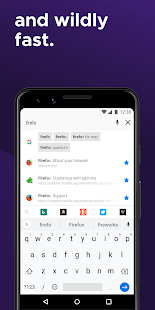
Firefox is an excellent alternative to Google Chrome. If you’re frequently moving between your computer and smartphone, it’s always best to use one browser to make your work easier by synchronizing your browsing data, bookmarks, and passwords. Although it is a little slower than Google Chrome at times, it has some features that it outperforms, such as support for extensions and the possibility of opening a new guest window that clears all your activities and logins inside it once you exit it.

Firefox also features some customizable interface options such as providing many features within its store, with the Pocket service for managing and organizing articles. Firefox is sometimes slow to load web pages when a good Internet connection is not available, so it is not recommended if you are a people with a slow Internet connection.


Opera Mini browser: the perfect choice for weak phones and small screens

Price: Free

Opera Mini - fast web browser
Developer: Opera
Price: Free 

  • Opera Mini - fast web browser Screenshot
  • Opera Mini - fast web browser Screenshot
  • Opera Mini - fast web browser Screenshot
  • Opera Mini - fast web browser Screenshot
  • Opera Mini - fast web browser Screenshot
  • Opera Mini - fast web browser Screenshot
  • Opera Mini - fast web browser Screenshot
  • Opera Mini - fast web browser Screenshot

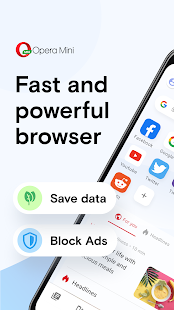
Opera Mini has long been known to be a fast browser before anything, as it dates back to the days of the Symbian system on older Nokia phones where it was the best alternatives to the basic slow browser that came with the phone. According to the developer, this browser can save 90% of the data that you may consume on another browser thanks to its compression algorithm, and although this number is too exaggerated, its use will make a difference in data exchange certainly.

In addition to being small and light on the phone, Opera Mini comes with some features that make your browsing experience better than some other browsers, such as the feature of ad blocking and the ability to change the colors of the interface, in addition to the function of the night reading mode, which allows to reduce the brightness of the screen and reduce the intensity The blue color in the browser is separate from other system applications.


Tor Browser: hide identity and access to the dark web

Price: Free

Tor Browser
Developer: The Tor Project
Price: Free 

  • Tor Browser Screenshot
  • Tor Browser Screenshot
  • Tor Browser Screenshot
  • Tor Browser Screenshot
  • Tor Browser Screenshot
  • Tor Browser Screenshot
  • Tor Browser Screenshot

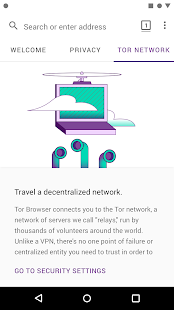
If privacy is the most important thing to worry about when you use the Internet browser, Tor is the best option. When you browse the Internet via Tor, it isolates the web pages you visit from any other service that monitors your activity for eavesdropping or even advertising, as well as clears cookies (Cookies) as soon as you exit it.

The browser also has three different browsing options where normal security mode, which gives you basic security features, is activated when you install the browser, but if you want to browse more securely, you can choose one of the other two modes, which provide high-security levels but with some sacrifices of course, such as Disable some of the features of the sites you visit font type and some icons in addition to preventing the autoplay of video files and other things that can be misused by the owners of these sites.

When you turn on Tor, it connects to private servers that encrypt and secure your connection completely. That is why it is difficult to recommend it to those looking for a fast-performing browser, since all the connections you make through it are converted to those servers first, which means a significant delay in response And slow loading pages often.

Best Android Keyboard Apps For More Speed And Better Customization

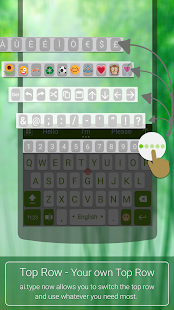
The original phone keyboard app is good enough, if you want to get more options, using a standalone keyboard software is usually a good idea. Keyboard AppsWhen the customizable keyboard market started, each keyboard had to offer something to make it a favorite over the default. Some keyboard apps offer options change colors and themes, while others provide more distinctive input options. As a result, there are now hundreds of different apps that offer keyboard services for android devices. Although the original phone keyboard app is good enough, if you want to get more options, using a standalone keyboard software is usually a good idea.

In this article, we will provide some of the best options for Android keyboard apps. Of course, the options here are not equal. Some keyboard programs have features that are not available in the others, and each keyboard has a set of features designed to attract users.

Gboard (Google Keyboard)

Gboard - the Google Keyboard
Developer: Google LLC
Price: Free 

  • Gboard - the Google Keyboard Screenshot
  • Gboard - the Google Keyboard Screenshot
  • Gboard - the Google Keyboard Screenshot
  • Gboard - the Google Keyboard Screenshot
  • Gboard - the Google Keyboard Screenshot
  • Gboard - the Google Keyboard Screenshot
  • Gboard - the Google Keyboard Screenshot

This keyboard app is simply the basic keyboard for Android. Gboard comes pre-installed and defaults For Nexus and Pixel phones. However, it can be said that this keyboard is your best choice if you want a smooth and simple typing experience but with many additional features as well.

The appearance of a Gboard keyboard can be greatly controlled. They can change their color or theme, control their size, and make the keys larger or smaller depending on your preference. No other keyboard can match Gboard. This simple keyboard is full of free features.

SwiftKey

Microsoft SwiftKey Keyboard
Developer: SwiftKey
Price: Free 

  • Microsoft SwiftKey Keyboard Screenshot
  • Microsoft SwiftKey Keyboard Screenshot
  • Microsoft SwiftKey Keyboard Screenshot
  • Microsoft SwiftKey Keyboard Screenshot
  • Microsoft SwiftKey Keyboard Screenshot
  • Microsoft SwiftKey Keyboard Screenshot

Swiftkey keyboard is one of the oldest and most popular in this category over the years. This keyboard is top-rated because of the unique writing way (Swipe to type or tap to type). It also contains many other features that have kept it today as one of the best keyboard options already.

Some of the features of this keyboard are professional customization. You can change the theme of almost anything. It is even possible to add an image from the gallery as a keyboard background. And many endless options. Of course, the keyboard has many unlocked features that require payment for it, but even according to the included free features, it can provide an excellent typing experience.

Fleksy

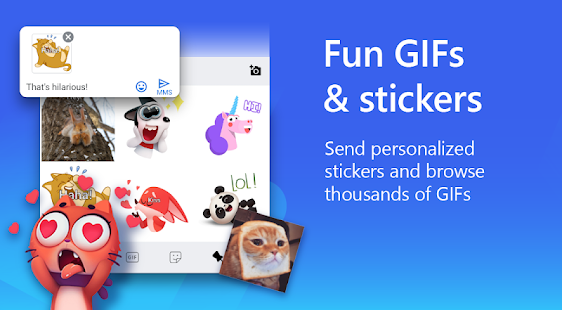
This keyboard is different from the rest of the apps in terms of the features it focuses on. Instead of focusing on appearance, Fleksy offers a wide range of add-ons that make use better. You can use YouTube-specific extensions to easily find a video, send the link to someone else, or simply find fun photo stickers or GIF.

Of course, the fun additions to the Fleksy keyboard don’t mean losing features. The design is easy to use and very comfortable. Many different themes and colors can be used to customize your keyboard. In addition, this keyboard has some useful add-on options such as dragging to delete an entire word or canceling space and replacing it with a user-selected drag method.

AI.Type

ai.type English Dictionary
Developer: ai.type
Price: Free 

  • ai.type English Dictionary Screenshot
  • ai.type English Dictionary Screenshot
  • ai.type English Dictionary Screenshot
  • ai.type English Dictionary Screenshot
  • ai.type English Dictionary Screenshot
  • ai.type English Dictionary Screenshot
  • ai.type English Dictionary Screenshot
  • ai.type English Dictionary Screenshot

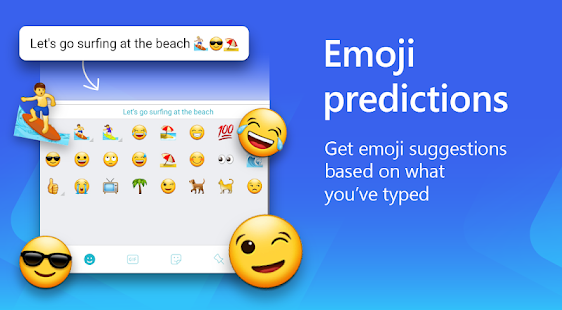
This keyboard focuses on artificial intelligence and machine learning techniques. Of course, naming it as artificial intelligence is highly misleading, but what is important here is efficiency, and in this area, the keyboard is even superior. It focuses on predicting the words (or emojis) that the user may want to type next, and the longer you use the keyboard, the more “accustomed” you become and therefore more successful in giving appropriate suggestions.

AI.Type keyboard is very similar to the usual. Here are some customization options, themes, and even some useful add-ons, but there is nothing different about other apps, but the main focus is on typing and speeding up.

Best Android Games You Can Play Without Internet Connection #LOCKDOWNGAMES

Best Android Games You Can Play Without Internet ConnectionIn this article dedicated to such emergencies or other situations depending on the mood, we suggest all these games without the Internet. You can play offline, games of several categories, Action, Adventure, War, Strategy, Sports, all games without Net you can play freely.


Overkill 3

Price: Free (in-app purchases)

Overkill 3
Developer: Craneballs
Price: Free+ 

  • Overkill 3 Screenshot
  • Overkill 3 Screenshot
  • Overkill 3 Screenshot
  • Overkill 3 Screenshot
  • Overkill 3 Screenshot
  • Overkill 3 Screenshot
  • Overkill 3 Screenshot
  • Overkill 3 Screenshot
  • Overkill 3 Screenshot
  • Overkill 3 Screenshot
  • Overkill 3 Screenshot
  • Overkill 3 Screenshot
  • Overkill 3 Screenshot
  • Overkill 3 Screenshot
  • Overkill 3 Screenshot
  • Overkill 3 Screenshot
  • Overkill 3 Screenshot
  • Overkill 3 Screenshot

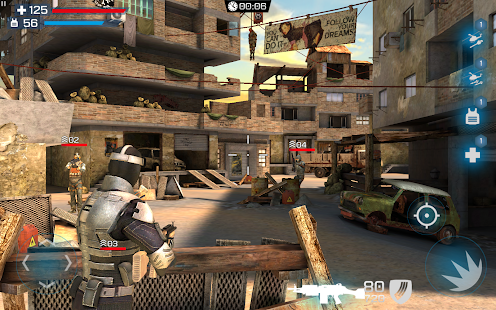
One of the war games that you can play without the Internet, Overkill 3 is a wonderful and fairy game that comes with high graphics and professional control, the game supports different modes of play, so that you can play online with a group of players, and you can also play without the Internet is a great feature In this game, in offline mode, you have to accomplish a series of tasks, the game tells the story of the man against the machine in a fierce war, playing the role of an armed man trying to overthrow an army of robots through a set of powerful and fun missions.

3D Pool Ball

Price: Free (in-app purchases)

3D Pool Ball
Developer: CanaryDroid
Price: Free+ 

  • 3D Pool Ball Screenshot
  • 3D Pool Ball Screenshot
  • 3D Pool Ball Screenshot
  • 3D Pool Ball Screenshot
  • 3D Pool Ball Screenshot
  • 3D Pool Ball Screenshot
  • 3D Pool Ball Screenshot
  • 3D Pool Ball Screenshot
  • 3D Pool Ball Screenshot
  • 3D Pool Ball Screenshot
  • 3D Pool Ball Screenshot
  • 3D Pool Ball Screenshot
  • 3D Pool Ball Screenshot
  • 3D Pool Ball Screenshot
  • 3D Pool Ball Screenshot
  • 3D Pool Ball Screenshot
  • 3D Pool Ball Screenshot
  • 3D Pool Ball Screenshot

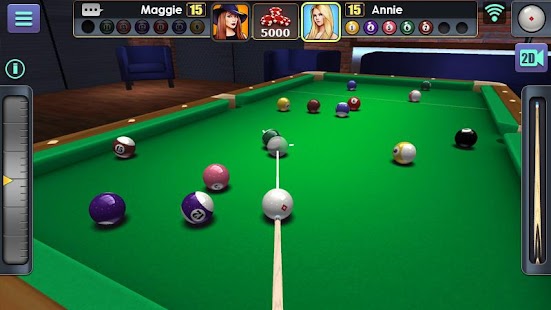
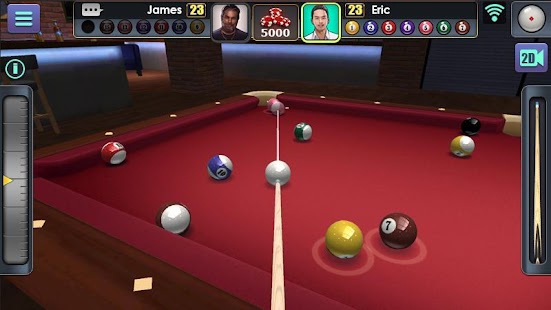
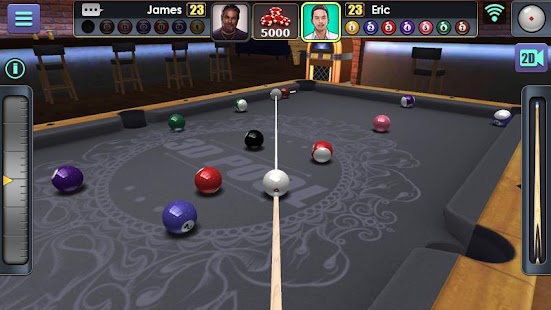
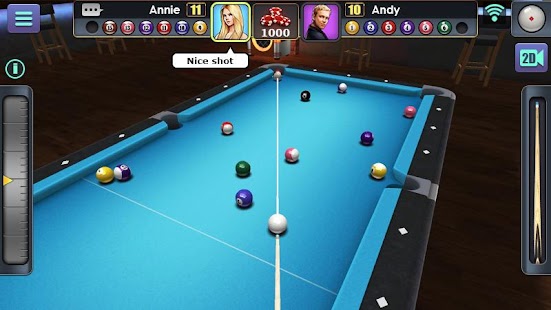
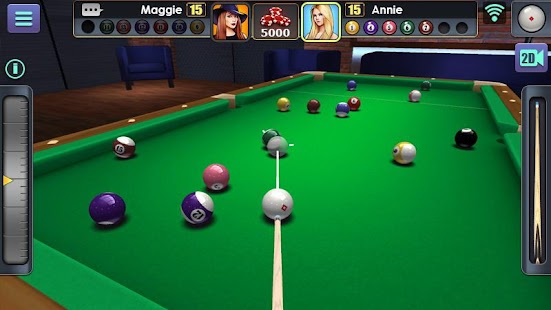
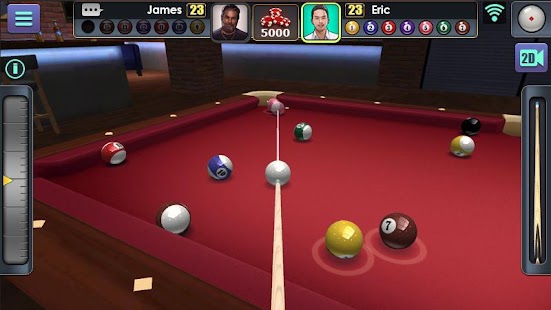
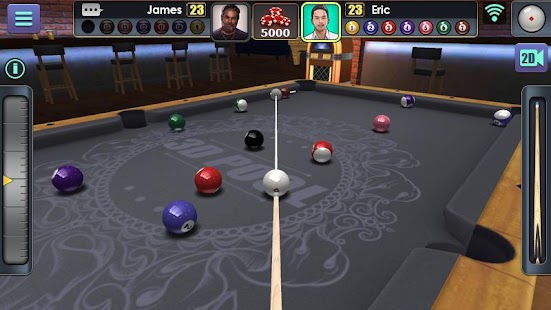
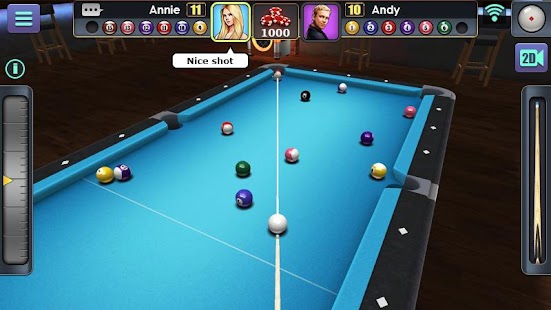
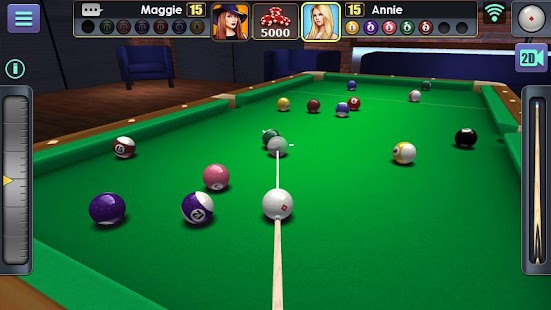
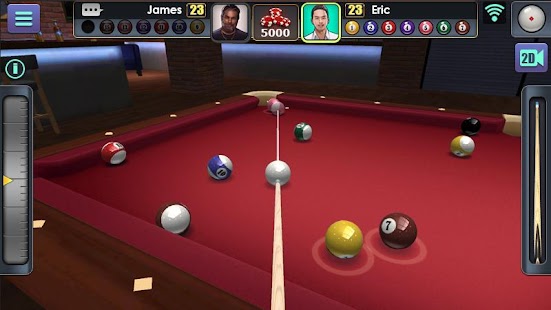
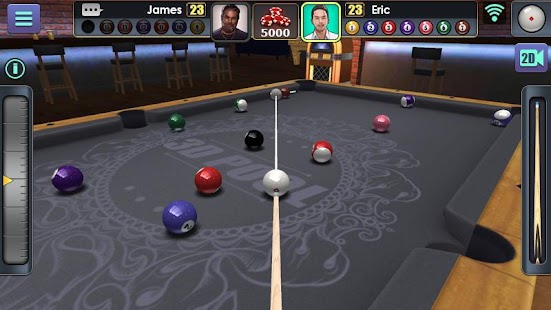
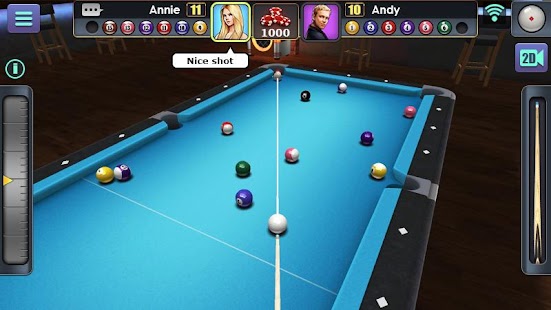
Are you a fan of billiard games? If you are, we guarantee you hours of gameplay without internet, of course, one of the sports and exciting android games that many adore, the fame of the famous 8 Ball Poll, but the game 3D Pool Ball you can play it offline with the Bots in the game, you can choose the level if you want to be a professional or beginner, the game come in three-dimensional mode and you can choose the view you want to play the game and overthrow the opponent, as there are different modes of play, and the possibility of changing the stick and table and other Other things.


Eternium

Price: Free (in-app purchases)

Eternium
Developer: Making Fun, Inc.
Price: Free+ 

  • Eternium Screenshot
  • Eternium Screenshot
  • Eternium Screenshot
  • Eternium Screenshot
  • Eternium Screenshot
  • Eternium Screenshot
  • Eternium Screenshot
  • Eternium Screenshot
  • Eternium Screenshot
  • Eternium Screenshot
  • Eternium Screenshot
  • Eternium Screenshot
  • Eternium Screenshot
  • Eternium Screenshot
  • Eternium Screenshot
  • Eternium Screenshot
  • Eternium Screenshot
  • Eternium Screenshot
  • Eternium Screenshot
  • Eternium Screenshot
  • Eternium Screenshot
  • Eternium Screenshot
  • Eternium Screenshot
  • Eternium Screenshot

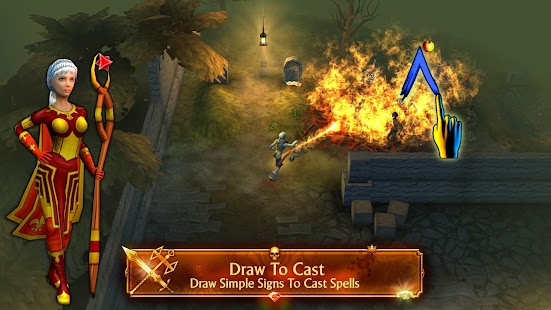
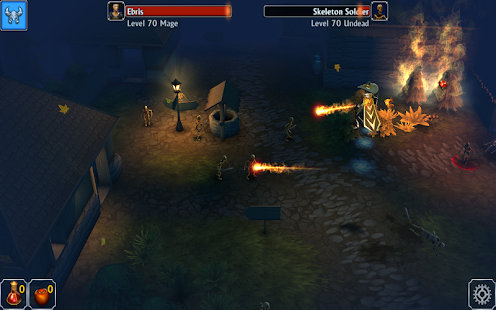
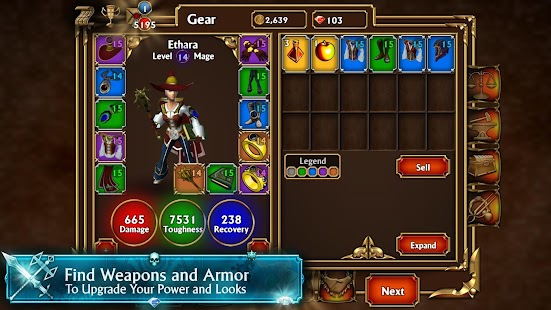
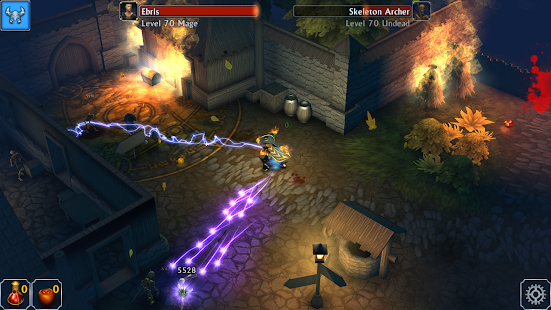
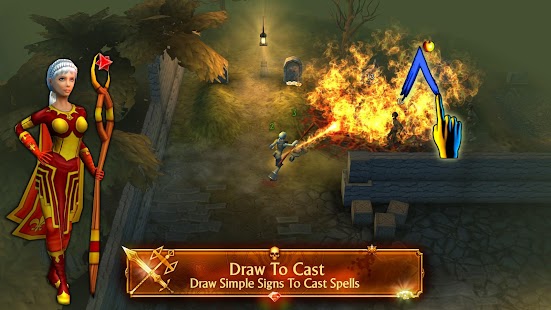
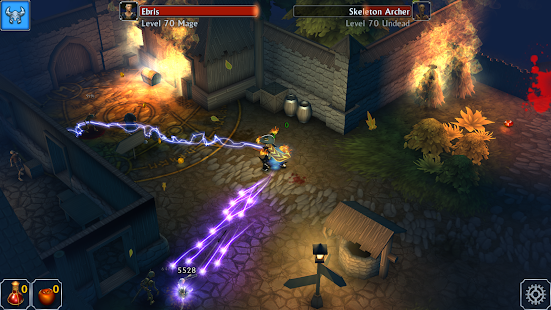
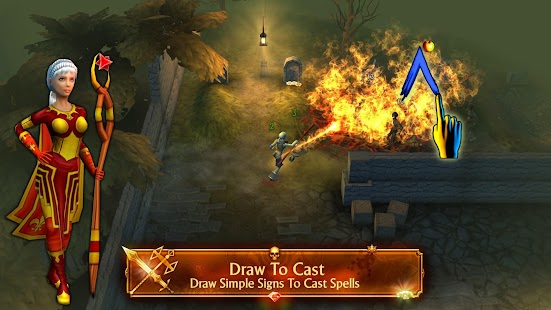
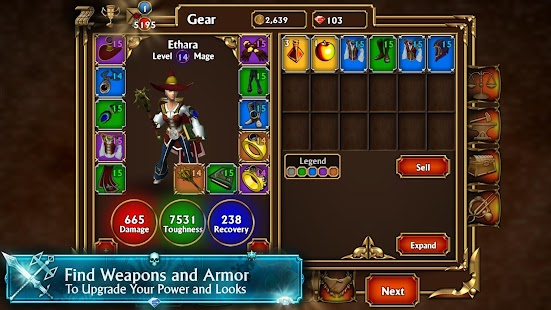
It is one of the most powerful games for Android without the internet, but before that, you will have to install it and then download all the requirements of the game to play it without the Internet, without it, you will have to play it in a normal mode online.
Lead in the game your monster that you create and prepare in a fantasy war against other people, you can play against the game Bots, and enjoy playing in the Offline mode without the Internet.


Smash Hit

Price: Free (in-app purchases)

Smash Hit
Developer: Mediocre
Price: Free+ 

  • Smash Hit Screenshot
  • Smash Hit Screenshot
  • Smash Hit Screenshot
  • Smash Hit Screenshot
  • Smash Hit Screenshot
  • Smash Hit Screenshot
  • Smash Hit Screenshot
  • Smash Hit Screenshot
  • Smash Hit Screenshot
  • Smash Hit Screenshot
  • Smash Hit Screenshot
  • Smash Hit Screenshot
  • Smash Hit Screenshot
  • Smash Hit Screenshot
  • Smash Hit Screenshot

Another game without the Internet, its one of my favorite games that I have played for months, will take you in a wonderful experience, you have a specific number of balls and many barriers in front of you, your goal is to break those bumps and difficulties before you by the balls, and collect other balls, the game is getting more and more challenging when you reach the advanced levels, this game will be addicted for some time believe me, and you will spend hours playing it all the time, and forget Internet world, there is another fun world of games that you can enjoy without the Internet.

Best Android Photo Editors Apps That Will Make Your Photos Better Than Ever

Best Android Photo Editors Apps That Will Make Your Photos Better Than Ever

For people interested in taking the best possible photos and enhancing the photos to the best, there are several steps. It starts with selecting and adjusting the camera, the way the image is taken and the application used to capture, but it doesn’t stop there, but there is one last step: the image editing program (Photo Editor). No matter how perfect the captured image is the moment it was taken, in many cases, there are ways to improve it. One of the effective ways today is to use a photo editor on your phone.

Of course, when you talk about photo editing there are a large number of existing applications. Simply any search in app store will return with hundreds or thousands of results. So in this article, we will talk about some of the best available photo editors. The application must be from a trusted source on the one hand, to be really good at what it does and to be with maximum features.


Snapseed

Snapseed
Developer: Google LLC
Price: Free 

  • Snapseed Screenshot
  • Snapseed Screenshot
  • Snapseed Screenshot
  • Snapseed Screenshot
  • Snapseed Screenshot
  • Snapseed Screenshot
  • Snapseed Screenshot
  • Snapseed Screenshot
  • Snapseed Screenshot
  • Snapseed Screenshot

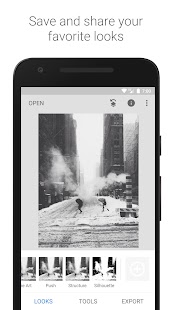
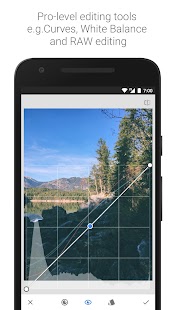
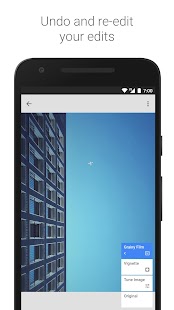
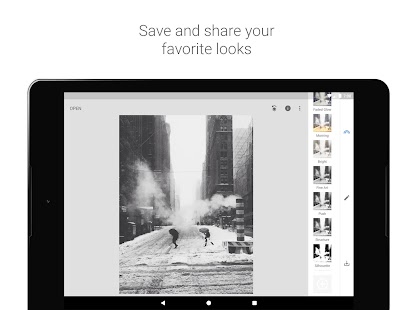
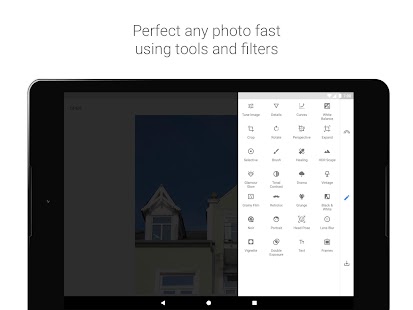
About 7 years or more ago, Snapseed started from the App Store as a paid app exclusively for iPads, but the app won an unrivaled success that drew Google’s eyes and bought its mother company. Since Google took over the app, it has become free and available for many platforms. Of course, the things that made the application distinctive in the beginning are still there with many additions. Simply we can say: the app is perfect for photography lovers.

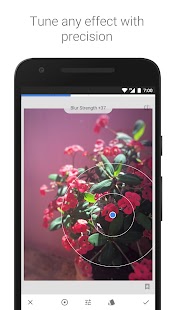
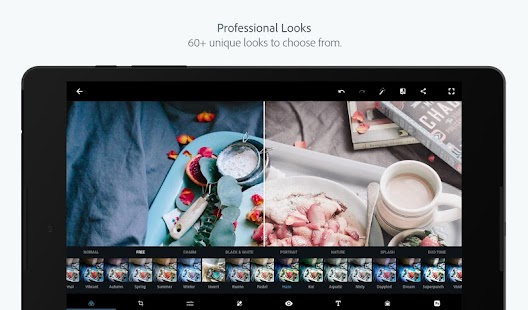
Snapseed Photo Editor offers a wide range of possible edits. Colors, focus points, image temperature, lighting and more can be manipulated. Of course, the app includes a large selection of prefabricated photo filters, but unlike the usual phone apps, the available filters are rather “serious” and tend to be professional rather than entertaining. So the application is like a portable alternative to the image editing software (especially correction applications) on computers.


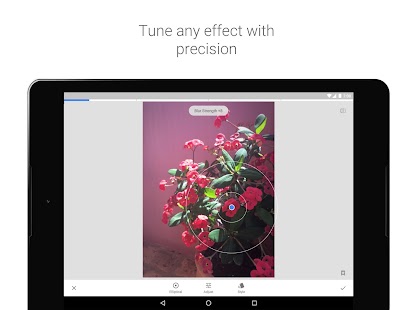
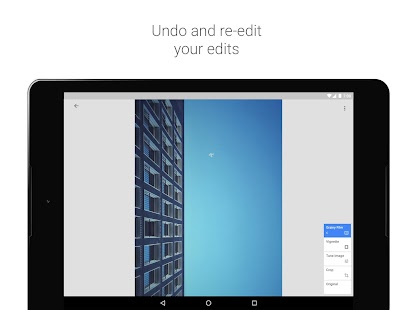
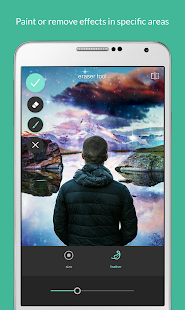
Pixlr

Pixlr – Free Photo Editor
Developer: 123RF Limited
Price: Free+ 

  • Pixlr – Free Photo Editor Screenshot
  • Pixlr – Free Photo Editor Screenshot
  • Pixlr – Free Photo Editor Screenshot
  • Pixlr – Free Photo Editor Screenshot
  • Pixlr – Free Photo Editor Screenshot
  • Pixlr – Free Photo Editor Screenshot
  • Pixlr – Free Photo Editor Screenshot
  • Pixlr – Free Photo Editor Screenshot
  • Pixlr – Free Photo Editor Screenshot
  • Pixlr – Free Photo Editor Screenshot

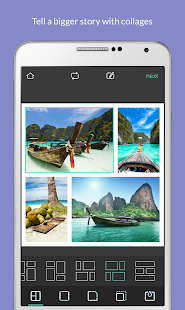
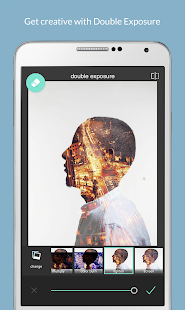
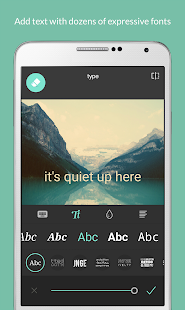
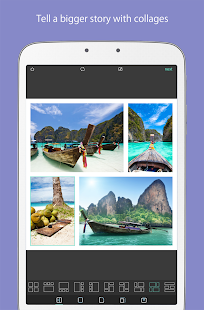
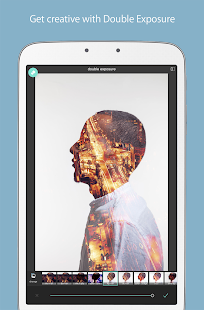
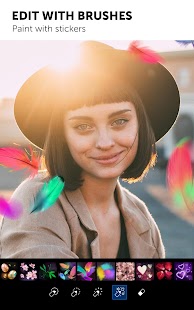
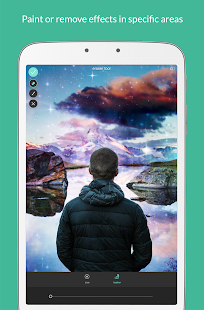
If Snapseed isn’t enough for you for some reason, or you want a different approach to the available features. The best alternative and competitor in the industry here is Pixlr. This application comes from Autodesk, a major company in the field of engineering and 3D design software. However, the application is probably a little out of the ordinary company domain. It is a truly unique photo editor with feature sets that are hard to beat. Of course, it is very simple to control even on relatively small screens.

In principle; Pixlr Photo Editor has all the features of Snapseed. Which means you won’t lack anything when you start to use it. Just as Snapseed, the app is of a serious nature in terms of what is available within it. Although it includes hundreds of variable filters, it is really meant to enhance images. So if you want a collection of fun frames or comic filters you won’t find your purpose here.


PicsArt

The busy market for photo editing software and applications includes a name everyone probably knows: PicsArt. This app is actually unmatched in popularity with nearly half a billion downloads. As the most downloaded photo editor for phones, it certainly has features that appeal to users. Unlike the two previous apps, this is not just an image enhancement app, but a real editing app. The application works as if it is the famous Photoshop program but on the phone.

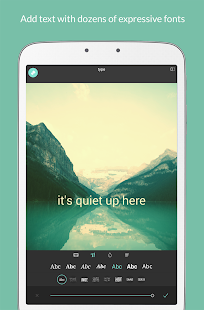
PicsArt Photo Editor includes everything that the average user actually imagines. It allows you to manipulate, cut, and paste other images over them. And of course, it includes an option to take pictures, add filters, stickers and write on photos. In short, the options available within the app seem infinite. It undoubtedly deserves its great popularity. But to get advanced features within the app, you must buy them with money. With so much available, buying everything actually costs a lot.


VSCO

VSCO: Photo & Video Editor
Developer: VSCO
Price: Free+ 

  • VSCO: Photo & Video Editor Screenshot
  • VSCO: Photo & Video Editor Screenshot
  • VSCO: Photo & Video Editor Screenshot
  • VSCO: Photo & Video Editor Screenshot
  • VSCO: Photo & Video Editor Screenshot
  • VSCO: Photo & Video Editor Screenshot

We have talked in our previous article about the best photography and camera software for phones about VSCO Cam application, but in addition to being one of the best camera apps available, it is one of the best in photo editing. The app offers a wide variety of possible modifications. It can range from changing the light or the temperature of the image to advanced settings such as controlling shadows and illuminated areas and “rescuing” them from turning white or black.

In addition to the above, there are many other options available. The range of available filters is very distinctive and offers great control over their application and the duration of the effects. You can make your photos look like they are from the 1990s by making them dim. Or even turn them into high-contrast black and white images to look like comic books. Although many of the best features in the app are paid extras that cost money, there are many free options that help users to edit images.


Adobe Photoshop (Photo Editor App Package)

Unlike previous games, this isn’t about a single application, but about Adobe’s image editing package. Of course, everyone knows Photoshop on computers, but on phones, it’s actually different. After stopping Photoshop Mobile, the company launched a package of applications to replace it. This package includes the following applications:

  • Adobe Photoshop Lightroom photo editor can be downloaded from Google Play.
  • Adobe Photoshop Express photo editor can be downloaded from Google Play.
  • Adobe Photoshop Mix photo editor can be downloaded from Google Play.
  • Adobe Photoshop Fix photo editor can be downloaded from Google Play.
  • Adobe Photoshop Sketch photo editor can be downloaded from Google Play.

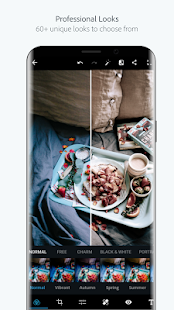
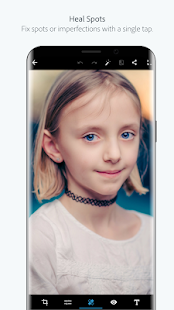
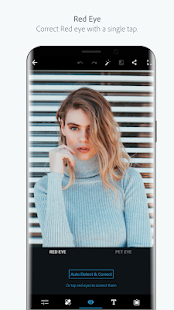
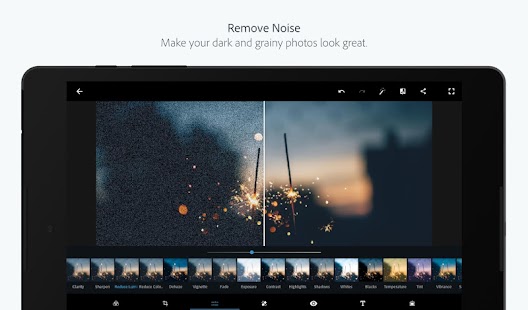
None of these apps offer the full features of the popular Photoshop photo editing software. Together, they provide all the things a typical or professional user needs in a distinctive way. Express allows you to add text and filters and make minor repairs. Lightroom enables advanced photo enhancement for photography enthusiasts. Mix focuses on merging, cropping and combining images. Of course, Fix focuses on fixing image defects and removing annoying objects. Finally, there is a Sketch, which acts as a drawing board and shows its true power when used on tablets or Samsung Note series phones.

Using these five apps all together offers everything you think of with advanced settings sufficient to satisfy even professionals. The main drawback, of course, is that the features are spread over five different applications rather than one. Getting used to these applications together takes time, but if you want the best available on the phones right now it is worth investing time and effort without a doubt.


Cymera Camera

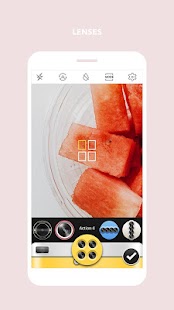
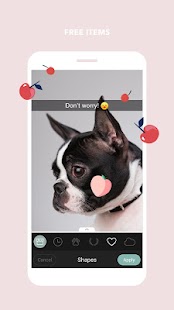
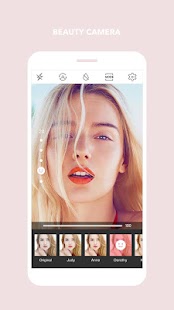
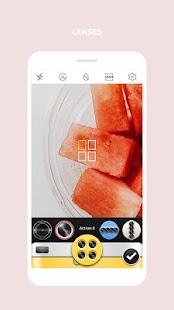
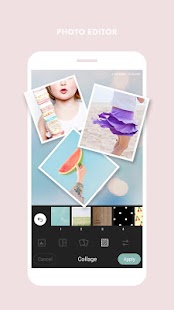
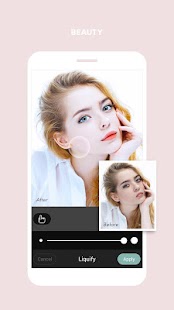
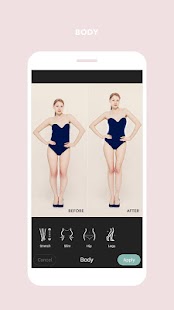
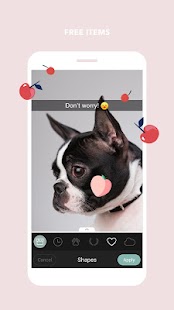
If your definition of photo editing software is closer to entertainment and making funny pictures in the first place. Cymera is the best photo editing app. For example, the application doesn’t support the professional editing capabilities of the Photoshop package, but it offers a huge variety of simple and quick adjustment options. This means that the application is suitable for the average user who is fun-loving in the first place. It isn’t for those who are interested in deep dealing with photos.

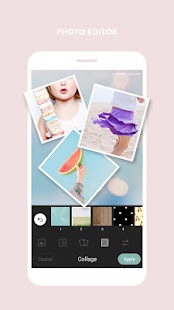
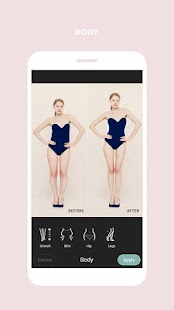
In general, the app offers you too many features. Everything from filters, frames and stickers can be applied and even more complicated things like improving and enhancing the image and even removing the disturbed parts within (for example, facial blisters). And of course, the app supports making photo collages with many options for arranging photos. Of course, like other applications, the Cymera photo editing software includes paid extras, but versus paid extras, there is a large and more than enough variety of free content.
Best Video Editing Apps For Android To Easily Merge And Write On Videos

video editing apps

For years, video editing and writing on video remained confined to computers, Because It requires high specifications that were not available in smartphones at the time.

Today, smartphones are good enough to do things like professionally merge or edit video with the tremendous evolution of multi-core processors and large RAM.

Shooting high-resolution videos up to 4K by phone has become affordable and a solution for many users as an alternative to professional cameras, so it was necessary to appear applications to edit these videos directly after filming, and without the need for big experience to use computer programs, Indeed, there are a large number of these applications that provide a distinct user experience, which we will talk about in this article.


Best video editing and merging apps for Android :

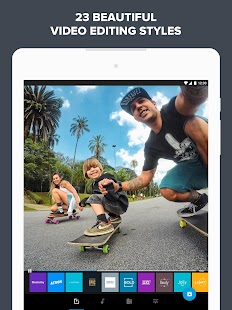
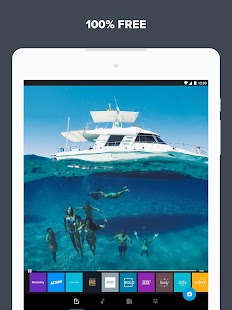
Quik: The fastest in the integration of video

Price: Free

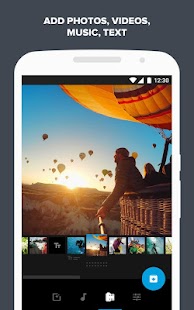
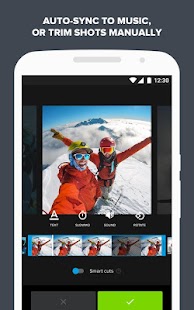
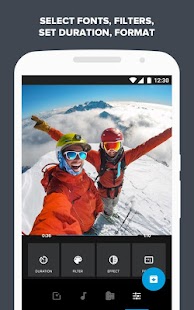
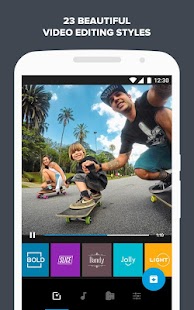
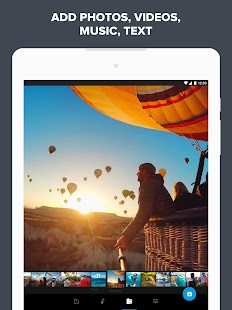
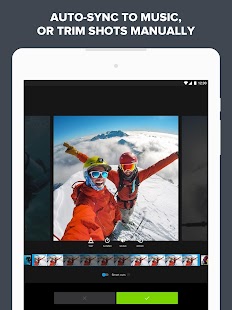
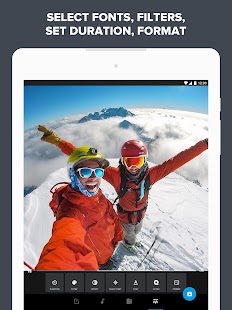
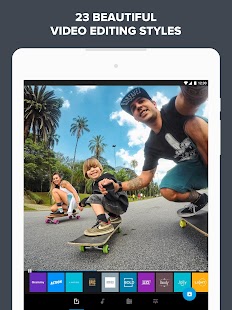
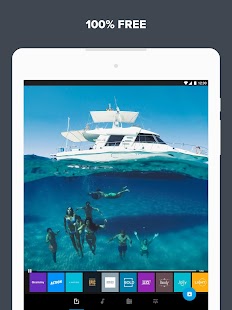
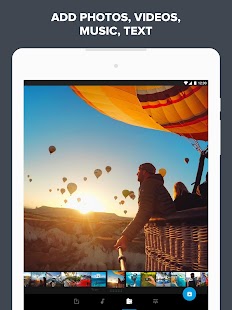
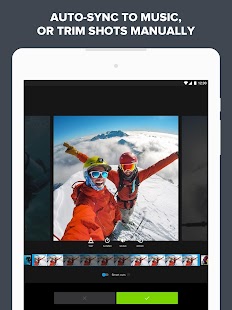
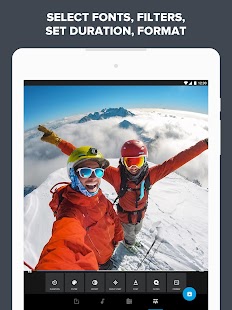
As the name suggests, This application is very fast in video editing process, and includes many of the great features such as the ability to write on video and compatibility with GoPro cameras, and the ability to save video at a frame rate of 60fps which gives great smooth playback, and synchronize transitions automatically with the tones in the music, Ability to save the video as a draft for further editing later.

Once you have edited the video it can be saved in 720p or 1080p quality, or share it directly to social networks. The application is completely free and does not contain annoying ads, and it is a very convenient option for fans of simplicity who want only basic tasks such as video integration.


KineMaster : The most popular video editing application

Price: Free with in-app purchases

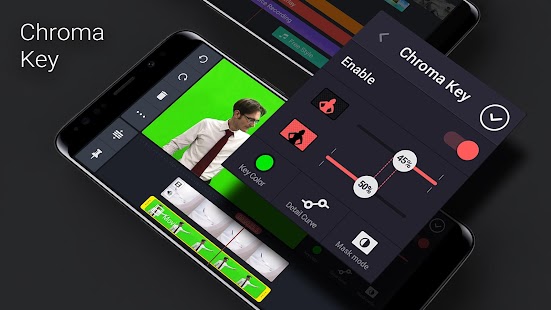
One of the most powerful video editing apps available on Android, it is recommended for those who want to produce professional videos.It supports multiple layers of single video (on supported devices only), 4K videos, multi-track audio, live preview of video while editing, 3D transitions, color filters Audio, video writing, tools and many other professional features.

The disadvantage of adding a watermark in the free version of it, and you must pay the monthly subscription to remove them, which makes it more expensive than most other applications over time, but if you do not mind the presence of the watermark application on the video this application is your best choice.


PowerDirector

Price: Free / In-app purchase

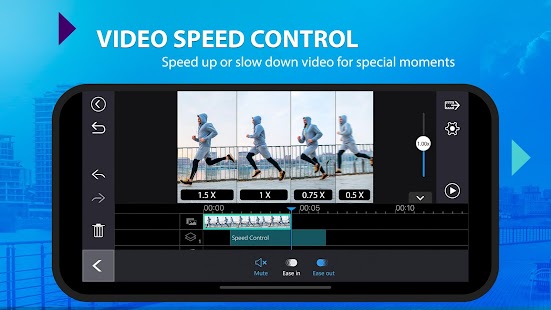
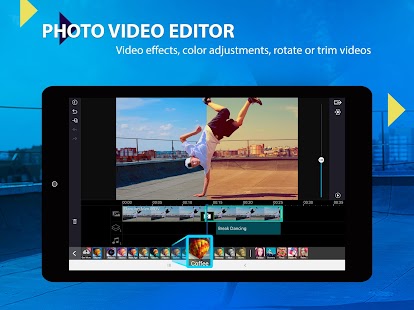
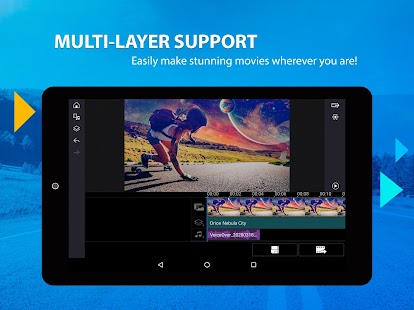
The app comes with an easy-to-use interface that allows you to edit video in a timeline, add titles (write on video) and transitions (video merge), a large library of effects with over 30 different effects, the ability to add background music and support slow-motion videos And share directly to YouTube.

The app comes with educational videos for each feature and tool, helping you to professionally use it quickly and effortlessly. The app has the disadvantage of having annoying ads and adding a video watermark in the free version, and some features like exporting 1080p or 4K video are only available in the paid version.
How To Compress Images In Android Without Losing Quality

Nearly everybody loves taking pictures and this one of the most reason why people purchase a mobile phone, some people buy phones just because of the camera. This mobile phone users who buy high tech phones are mostly females. However, if you one of those mobile users who purchase high-quality phone because of the camera and want to compress your picture without losing quality then you are in the right place. There are some high spec mobile phones that take image in high quality this type of quality consume huge amount of space on your device, have you ever check your android phone storage and sees that the space is low without your knowing what you have installed or copy in it, this problem is your image quality which is training your storage, lets look how to fix this

How To Compress Images In Android Without Losing Quality

these methods are very easy to and simple to follow, to do this we are going to need these below apps, and the best thing is that none of this apps requires root permission which means you can run it rooted and none rooted device

How To Compress Images In Android Without Losing Quality

these methods are very easy to and simple to follow, to do this we are going to need these below apps, and the best thing is that none of this apps requires root permission which means you can run it rooted and none rooted device

Steps To Compress Image File Without Losing Quality

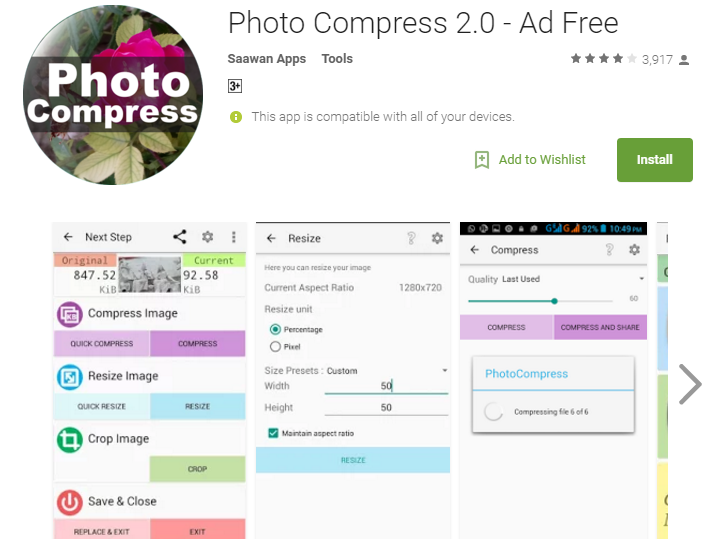
Step 1. First of all download and install the app Photo Compress on your android device.

How To Compress Images In Android Without Losing Quality

Step 2. Now launch the app and there you will see options Pick the image from the gallery, capture, and multiple compresses. Now you can choose any random image from the gallery to compress it. Choose the multiple options to compress 2 or more or compress all the images in a gallery to save lots of data of your android device.

Step 3. Now select the Compression action at the next screen.

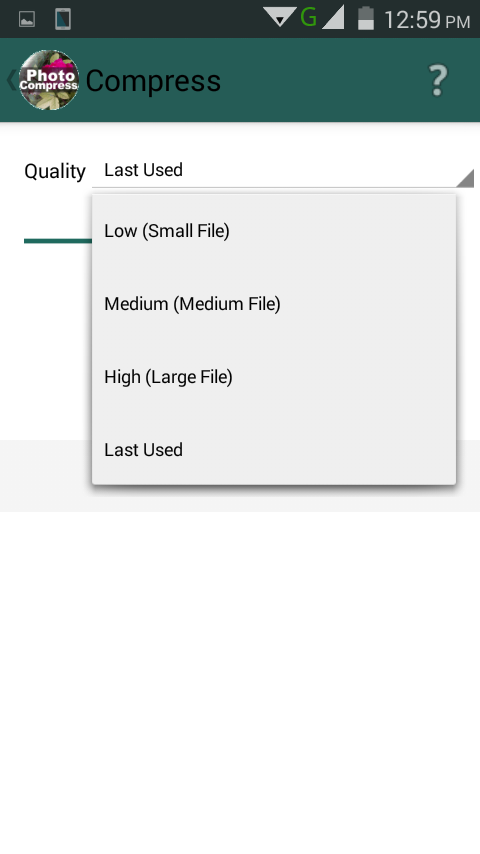
Step 4. Now select the quality that you want to set to the image you are compressing.

How To Compress Images In Android Without Losing Quality

That’s it! you are done, now your images get compressed and this going to save lots of memory.

Using Compress Image

Do you have low storage and don’t want to delete any of your files or pictures in your mobile device then this app is for you it can compress all your pictures without losing it quality, follow the below steps on how to use this app.

Step 1. First of all, you need to download and install the compress image on your Android smartphone.

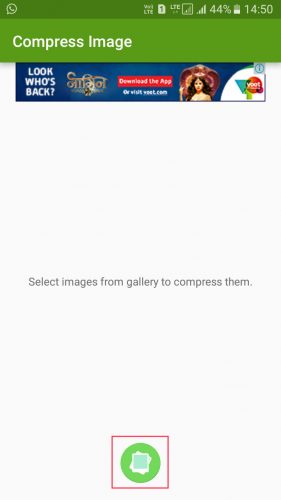
Step 2. Now launch the app and you will see the screen like below. You need to tap on the gallery icon to start selecting your photos.

Using Compress Image

Step 3. Now in the next step, you need to select the images that you want to compress.

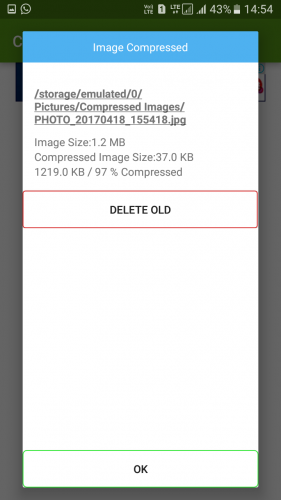
Step 4. Now simply tap on the tick button and then wait for the app to compress the selected images. Once compressed you will see the screen like below.

Using Compress Image

That’s it! you are done. This is how you can compress images in your Android without losing quality.
Using Cram

Image result for cram apk

Cram is an image compressor app, to shrink pictures on your Android device by 60% or more—without compromising the actual display/print dimensions, resolution, or beauty of your photo files. However, it only gives you 300 photos free over the lifetime of the app later you have to pay $1.99 to remove the limitation.
Step 1. First of all, download CRAM on your Android smartphone from the Google Play Store. You can get the download link from below.

Step 2. Now, open the app and grant the permission to access your smartphone’s storage.

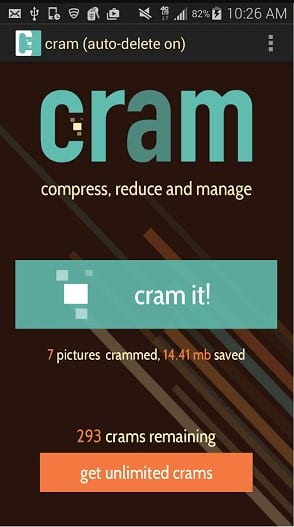
Step 3. Now, you will see an interface like below. Here you need to tap on the ‘Cram it!’

Using Cram

Step 4. In the next step, you will be asked to select the photos to reduce the size. Simply select the photos and tap on ‘Cram it!’

Step 5. Wait until the app compresses your images. Once done, you will get a popup which will show you the reduced size of the images.

Design a site like this with WordPress.com
Get started