
in today’s tutorial am going to teach you how to receive your phone SMS on your pc, I know you are wondering if this is possible the answer is yes, you can receive your mobile SMS on your computer and read it without touching your mobile phone this trick is very helpful for people whom their boss has restricted them from using phone at work, in addition, you can all so use this method to receive SMS on your computer when android your phone is at charge, charging your phone and using it is not a good thing because you can easily spoil the battery of your smartphone, so with this below method you will be able to receive all your SMS on your computer without any problem
How To Send And Receive All Your Android SMS On PC
The method is simple and straight and just require the android app that will transfer your SMS to PC and an extension of a browser that will allow you to get notify and read the message you received. So follow the methods below to implement this whole setup.
Method 1: Using Mighty Text
Step 1. First of all download and install app Mighty Text on your android device.
Step 2. Now in your Google Chrome browser add the extension Mighty Text.
C
Step 3. Now open the app you will need an initial pair up with your PC as it will be done over wifi network on which both the devices being connected.
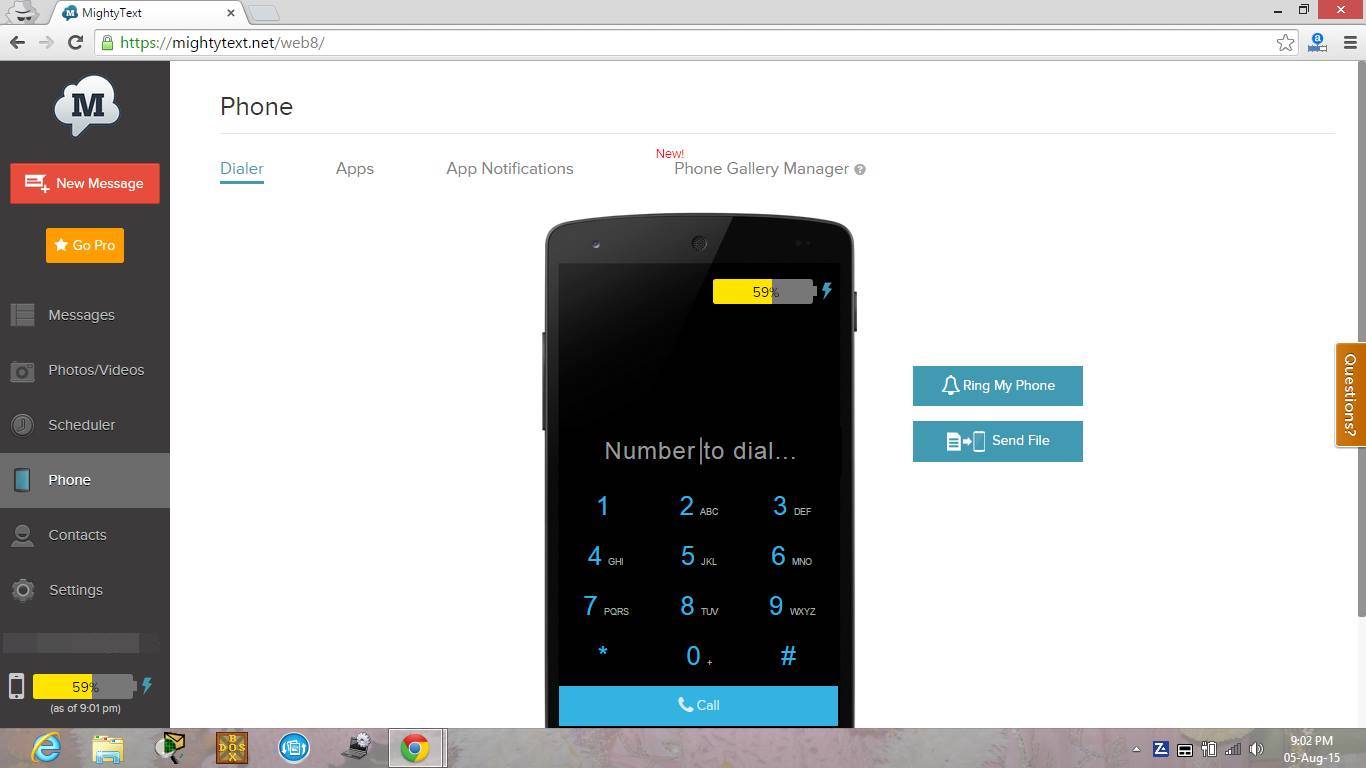
Step 4. Now when you setup is done now you will see your android name on the icon when you click on it.
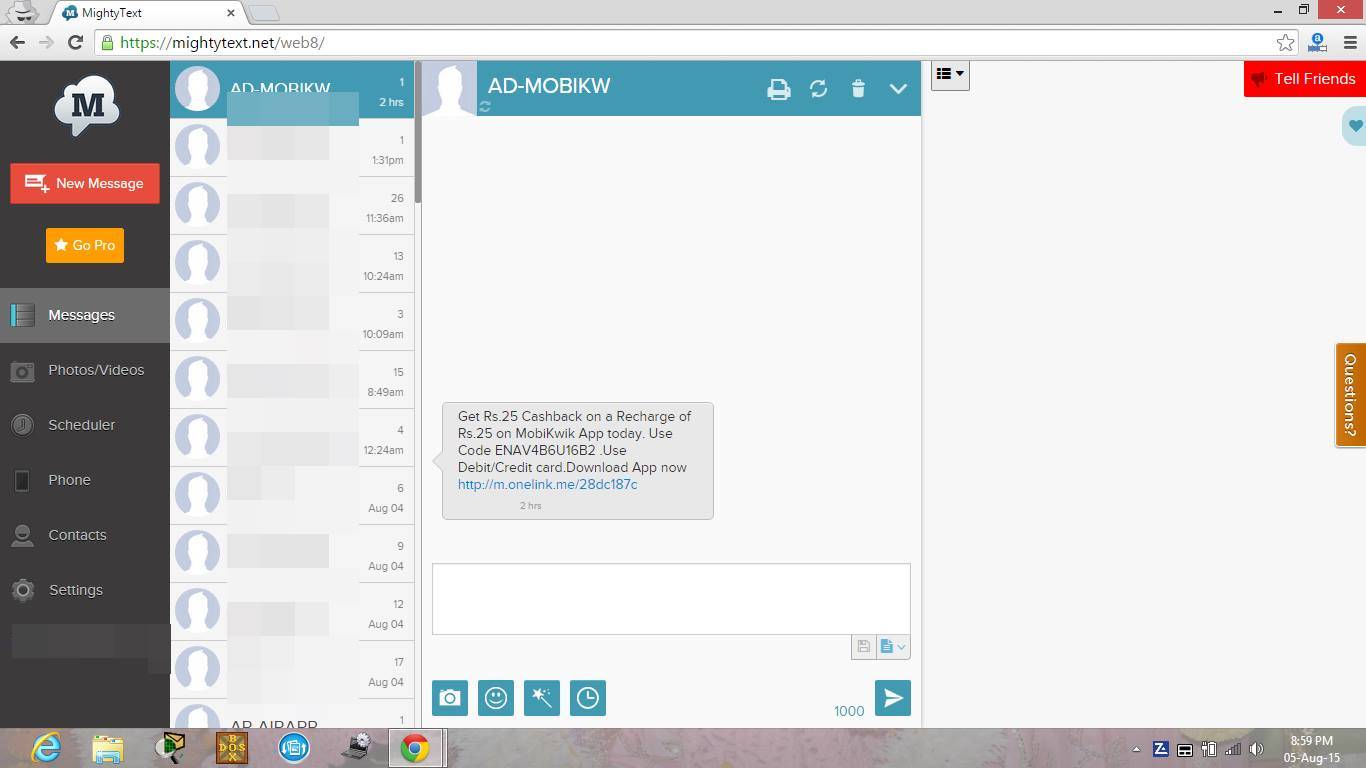
That’s it! all done, now when your android receives any SMS it will transfer on your extension of PC and you can read it there.
Method 2. Using Airdroid On Your Computer Browser
.
Step 1. You need to download Airdroid on your Android Smartphone first.
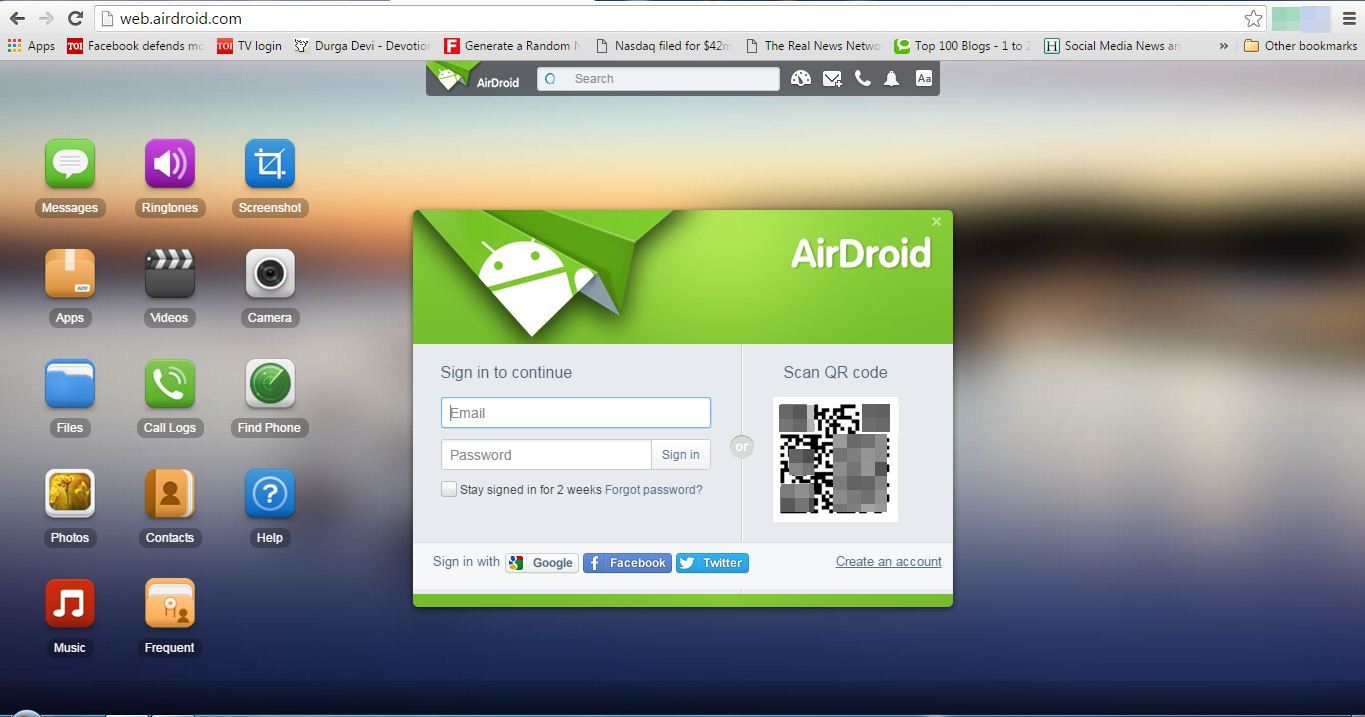
Step 2. After you downloaded the app on your Smartphone. Now go to web.airdroid.com from your Computer browser.
Step 3. Now scan the QR Code Given in your Computer screen with the help of your Android Mobile app.
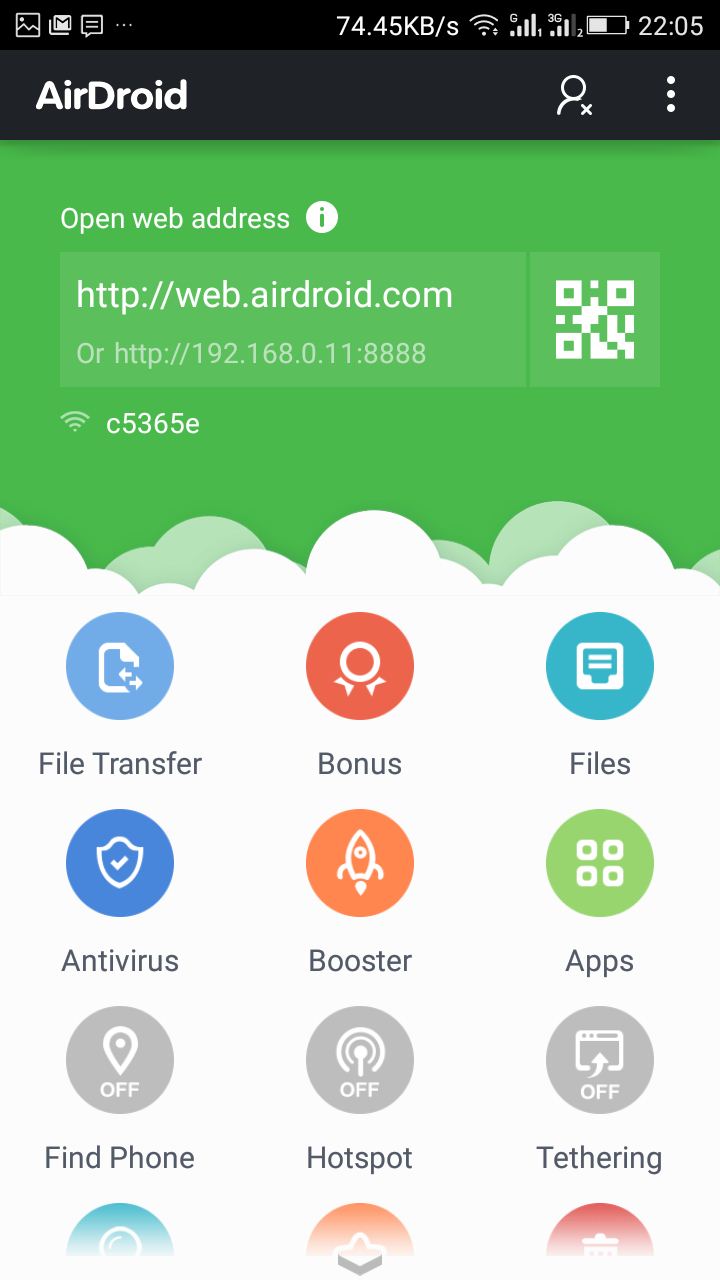
All done. You can now explore your smartphone on your computer browser. You can send and receive SMS easily.
Method 3: Using ApowerMirror
Well, ApowerMirror is another great tool that you can use to send and receive all your Android SMS on PC. The great thing about ApowerMirror is that it allows users to mirror the entire Android screen on the computer. So, after mirroring, you can control the screen right from your computer. Here’s how you can use ApowerMirror to control send and receive Android SMS on PC.
Step 1. Download and install ApowerMirror on your Android smartphone. You can get the download file from the Google Play Store.
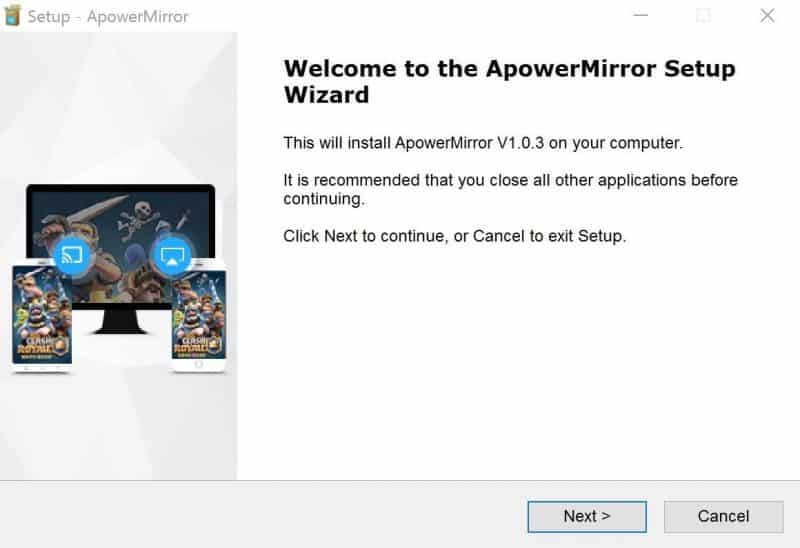
Step 2. Next, open ApowerMirror website on your computer and download the ApowerMirror client. Install the ApowerMirror client on your computer and just follow the on-screen instruction.
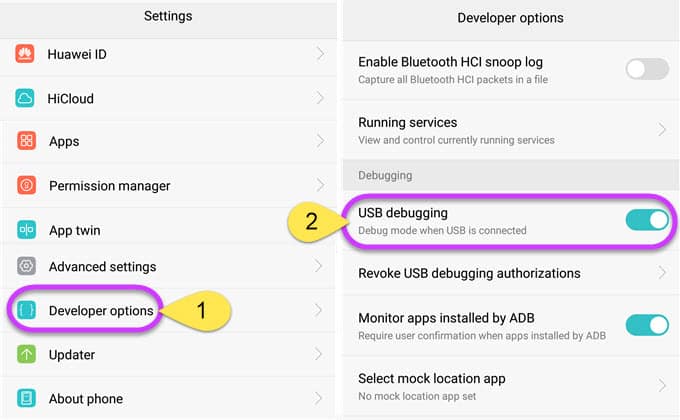
Step 3. Now you need to enable the USB Debugging Mode on your Android. For that, head to the Developer Options and there find and enable the option ‘USB Debugging Mode’
Step 4. In the next step, connect your Android smartphone to the computer via USB Cable.
Step 5. Now look at your Android screen, you will be asked to grant the notification access. Make sure to tap on the ‘Start Now’ button to mirror your Android device on the computer.
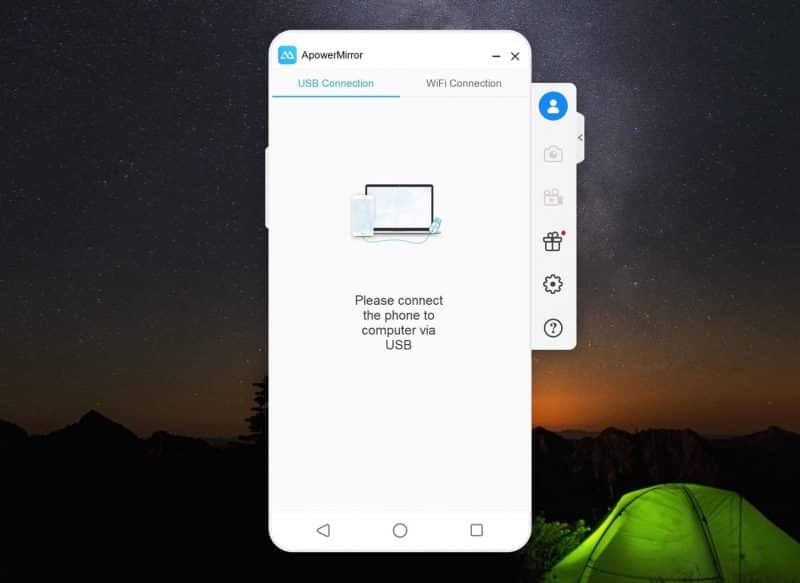
That’s it, you are done! Now you will see the entire Android screen on your computer. Now, you can send and receive Android text messages right on your computer screen.
 FREE OTT CONTENT