
Are you facing low ram on your android device, if yes this article is for you am going to show you 4 methods to increase you android ram, after following these methods your phone won’t freeze again and you will be apple to multitask smoothly and also run heavy games on your android phone? follow these below methods on how to increase android ram. but first, i want you to know that some of these apps require root permission, so if your device is not yet rooted then do it to be able to use most of these methods
Using Roehsoft RAM Expander(Swap)
Roehsoft is an android app that allows you to increase your android ram this app is not free in playstore but you can get it for free from here,roehsoft app is the best and most known app to increase android ram, with this app you either chooses to use your internal or external storage to increase your ram, to do this you will need fast sd card
Step 1 First of all, download and install Roehsoft Ram Expander(Swap) on your rooted Android device.
Step 2. Now after installing open the app and grant it a superuser request.
r
Step 3. Now you will get to see SDcard memory, Free Ram, Total Free RAM.
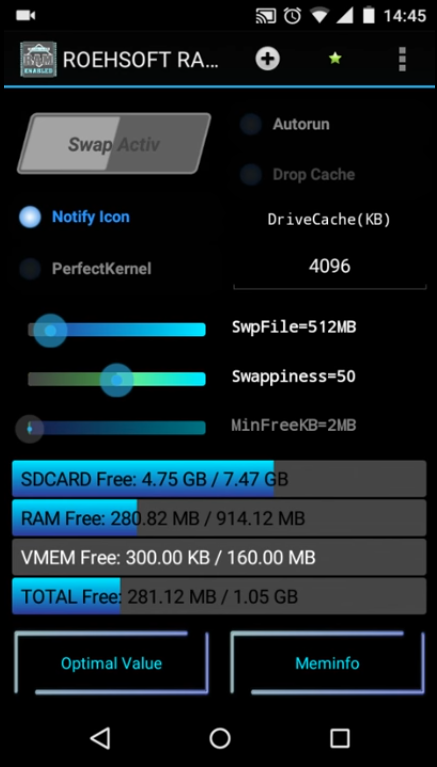
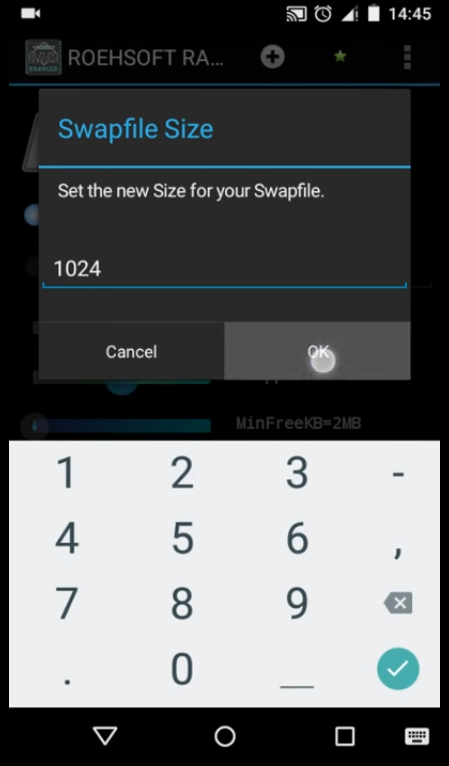
Step 4. You need to set the new size for your Swapfile.
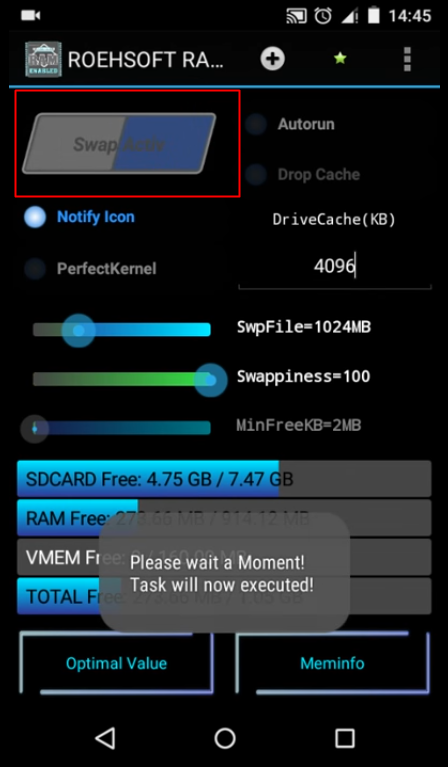
Step 5. Now simply swipe over “Swap/active” and wait for a moment until the swap is executed.
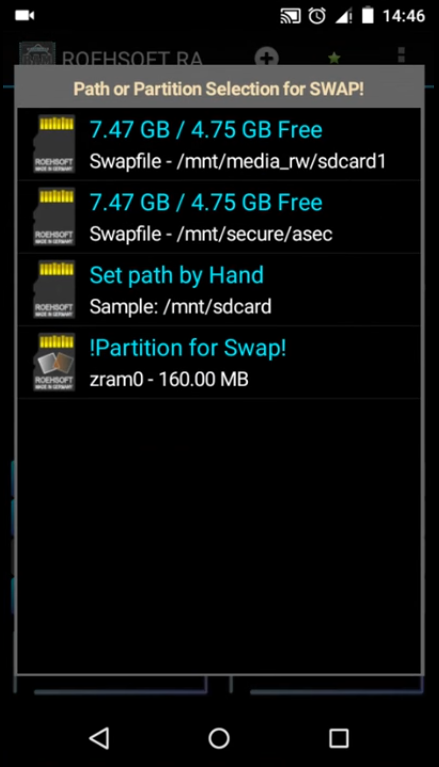
Step 6. Now you have to select the path or partition selection for the swap. Simply, select your SD card here.
Step 7. Now simply go back to the main page and swipe over “Swap/active” and wait until the app finishes creating the swap file.
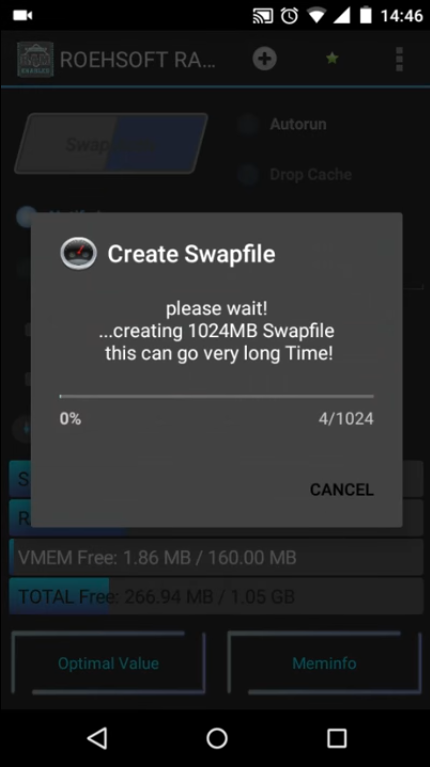
That’s it ! Now you will see your Total free RAM will increase. This is the easiest way to expand
Using RAM Manager Pro
this app is just like roeshoft but the difference is that it can run on both none rooted device and rooted device if you have tried the above methods and did not work on your device try using this method because the above app roehsoft does not work on all devices
step 1 download ram manager pro from here and install on your android phone
step 2 after installing you will see the main interface of the app.
Step 3 Head to the RAM settings and tap on ‘Tune RAM’ and balance it as per your wish.
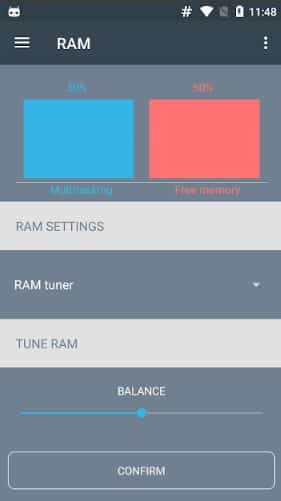
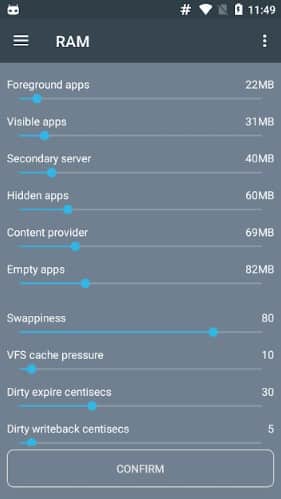
Step 4. You can set RAM usage priority for foreground apps, visible apps, secondary server, hidden apps, etc.
Step 5. If you want to Swap the SD card memory (Rooted device only) then tap on ‘Swap files’
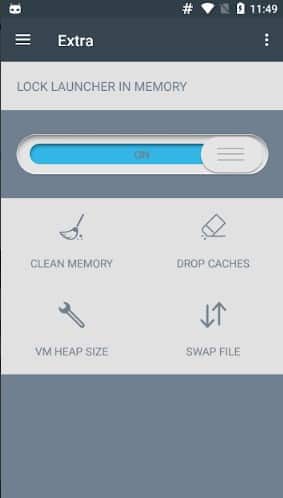
Step 6. Now you need to set the new SD card and RAM memory limit.
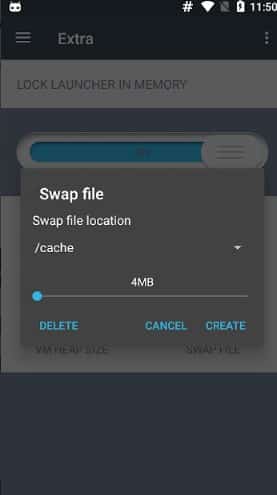
That’s it, you are done! This is how you can use RAM Manager Pro to increase RAM on Android. Please note that it’s an advanced app and playing with the settings might brick your Android device[damage your device],
with this method you will be able to increase ram on your android phone using this pc software,to do this it will require you the following
Requirement
SD card (4 or higher SD Card)
Rooted smartphone Or Rooted Tablet (how to root android)
SD card reader
Windows PC
First of all, you need to partition your SD Card, Download Mini tool Partition from Here. Install the application on your PC and connect your SD card to your PC with Card Reader.
Step 1. Open Mini Tool Partition on your PC and when the wizards opens, click on your SD Card and select Delete option.
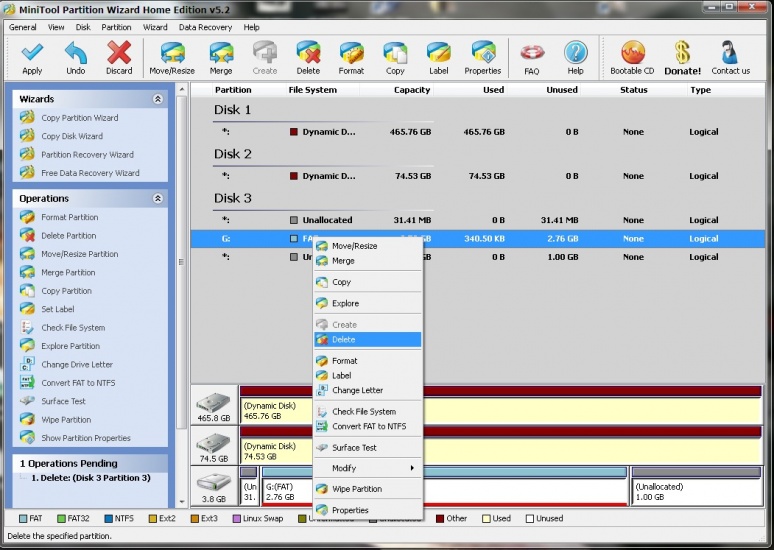
Note: This will format your SD Card completely. So, make sure to perform a complete backup of your SD card before you proceed with the next steps.

Step 2. Once the formatting is done successfully, you will have enough space on your SD Card as unallocated then just Right click on SD Card and select “make” option. A popup box will open giving you options for making partition; select the partition as primary and file system as FAT if SD Card is less than 4GB or FAT32 if your SD Card is more than 4GB.
Step 3. Leave about 512 MB or more space (your choice) for making the next partition. Then select done and do right click on unallocated space of your SD Card and again click “make” option. Select Primary partition but change the file system to Ext2, Ext3 or Ext4.
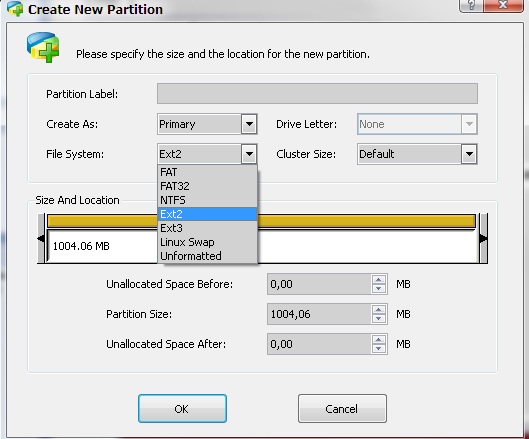
Note: (Ext2 is not compulsory as most ROMs work fine with it).
 FREE OTT CONTENT